首页
课程
问答
CTF
社区
招聘
峰会
发现
排行榜
知识库
工具下载
看雪20年
看雪商城
证书查询
登录
注册
首页
社区
课程
招聘
发现
问答
CTF
排行榜
知识库
工具下载
峰会
看雪商城
证书查询
社区
WEB安全
发新帖
6
5
[原创]使用自动化过腾讯滑块和阿里滑块
发表于: 2024-12-1 12:44
8615
[原创]使用自动化过腾讯滑块和阿里滑块
Harden13
2024-12-1 12:44
8615
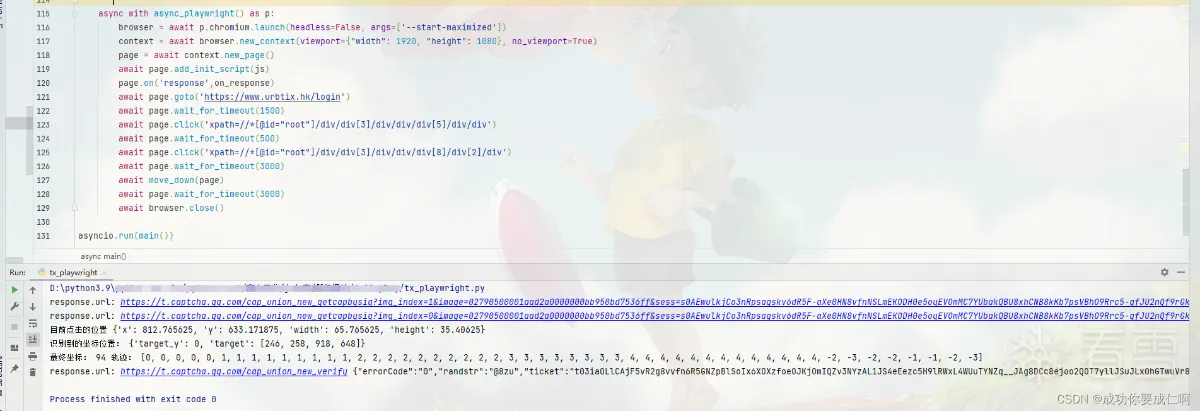
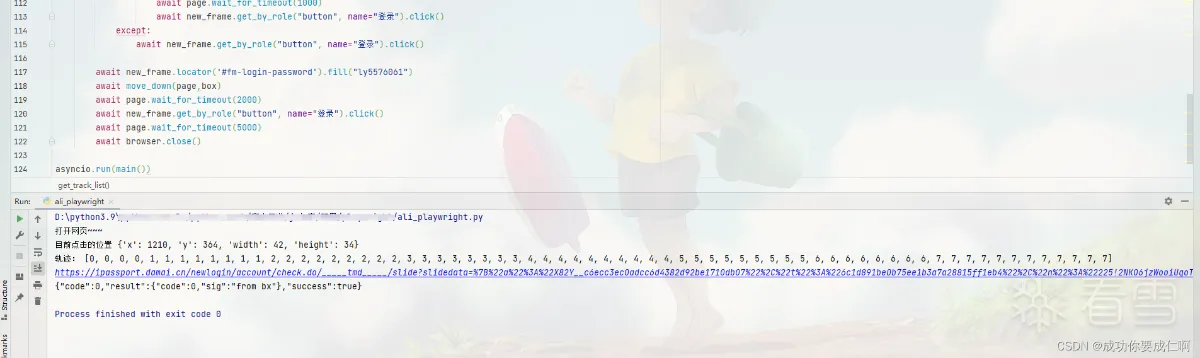
## 案例一:tx滑块(playwright) ``` 目标网站:aHR0cHM6Ly93d3cudXJidGl4LmhrL2xvZ2lu ``` 1、创建Chromium实例(如果不设置为 False,默认是无头模式启动浏览器) ``` async with async_playwright() as p: browser = await p.chromium.launch(headless=False, args=['--start-maximized']) ``` 2、最大化窗口 ``` context = await browser.new_context(viewport={"width": 1920, "height": 1080}, no_viewport=True) ``` 3、新建标签页 ``` page = await context.new_page() ``` 4、加载过检测js ``` await page.add_init_script(js) #stealth.min.js ``` 5、监听response事件 ``` async def on_response(response): if '/cap_union_new_getcapbysig' in response.url and response.status == 200: #对背景图以及滑块图进行拦截然后保存 if 'img_index=1' in response.url: with open("bg_picture.jpg", "wb") as f: f.write(requests.get(response.url).content) elif 'img_index=0' in response.url: with open("cut_picture.png", "wb") as f: f.write(requests.get(response.url).content) print("response.url:", response.url) if 'cap_union_new_verify' in response.url and response.status == 200: #滑块通过后获取参数 result = await response.text() print("response.url:", response.url,result) page.on('response',on_response) ``` 6、打开网页、触发滑块 ``` await page.goto('aHR0cHM6Ly93d3cudXJidGl4LmhrL2xvZ2lu') await page.wait_for_timeout(1500) await page.click('xpath=//*[@id="root"]/div/div[3]/div/div/div[5]/div/div') await page.wait_for_timeout(500) await page.click('xpath=//*[@id="root"]/div/div[3]/div/div/div[8]/div[2]/div') ``` 7、识别坐标 ``` def get_gap_offset(): """ 识别坐标,滑块的图片需要切割 """ det = ddddocr.DdddOcr(det=False, ocr=False, show_ad=False) img = Image.open('cut_picture.png') region = img.crop((160, 508, 243, 595)) # region.save(f'cut_picture.png') with open('bg_picture.jpg', 'rb') as f: target_bytes = f.read() with open('cut_picture.png', 'rb') as f: background_bytes = f.read() res = det.slide_match(target_bytes, background_bytes, simple_target=True) print("识别到的坐标位置:", res) distance = int(res['target'][0]) return distance ``` 8、找到滑动起始点,并滑动 ``` async def move_down(page): #定位iframe new_frame = page.frame_locator('iframe[id="tcaptcha_iframe_dy"]') #定位起始点 move_tag = new_frame.locator('xpath=//*[@id="tcOperation"]/div[6]') #找到这个元素在当前页面的坐标 box = await move_tag.bounding_box() print("目前点击的位置",box) # 讲鼠标移动到到其实元素的中心 await page.mouse.move(box["x"] + box["width"] / 2, box["y"] + box["height"] / 2) # 按下鼠标 await page.mouse.down() #延时1.2s await page.wait_for_timeout(1200) # 这里获取到x坐标中心点位置 x = box["x"] + box["width"] / 2 #识别到坐标后与网页上的比例 distance = int(get_gap_offset()/1.97)-30 #轨迹 move_distance = get_track_list(distance) print("最终坐标:",distance,"轨迹:",move_distance) for i in move_distance: x += i await page.mouse.move(x, box["y"]) await page.mouse.up() ``` 9、关闭窗口 ``` await browser.close() ``` **至此tx滑块的分析就结束了**  然后我还写了一版selenium的,相比于playwright就会麻烦一些 ## 案例一:tx滑块(selenium) ``` 对于我们日常使用而言两者主要区别在于: 1、selenium只支持同步,playwright可以支持异步的 2、操作iframe,selenium来回切换iframe非常麻烦,而playwright只需要定位元素即可 2、在监听请求这一点上,playwright的page.on非常好用,而selenium一般是借助browsermobproxy通过代理的方式进行拦截 使用方式:(1)https://github.com/lightbody/browsermob-proxy/releases,下载并解压 (2)安装证书,参考链接https://www.bilibili.com/read/cv21263644/ (3)调用方式 server = Server('browsermob-proxy-2.1.4/bin/browsermob-proxy') server.start() proxy = server.create_proxy(params={'trustAllServers':'true'}) option = ChromeOptions() option.add_argument('--proxy-server={0}'.format(self.proxy.proxy)) driver = webdriver.Chrome(options=option) ``` 这里就不细致讲解了,主要代码如下 ``` class Tencent(): def __init__(self): server = Server('browsermob-proxy-2.1.4/bin/browsermob-proxy') server.start() self.proxy = server.create_proxy(params={'trustAllServers':'true'}) self.url = 'aHR0cHM6Ly93d3cudXJidGl4LmhrL2xvZ2lu' option = ChromeOptions() option.add_experimental_option('excludeSwitches', ['enable-automation']) option.add_experimental_option('useAutomationExtension', False) option.add_argument('--proxy-server={0}'.format(self.proxy.proxy)) self.proxy.new_har(options={'captureContent': True,'captureHeaders': True}) self.driver = webdriver.Chrome(options=option) self.driver.execute_cdp_cmd('Page.addScriptToEvaluateOnNewDocument', { 'source': 'Object.defineProperty(navigator,"webdriver",{get: () => undefined})' }) with open('stealth.min.js') as f: js = f.read() self.driver.execute_cdp_cmd("Page.addScriptToEvaluateOnNewDocument", {"source": js}) self.driver.maximize_window() self.det = ddddocr.DdddOcr(det=False, ocr=False, show_ad=False) self.headers = {'user-agent': 'Mozilla/5.0 (Windows NT 10.0; Win64; x64) AppleWebKit/537.36 (KHTML, like Gecko) Chrome/108.0.0.0 Safari/537.36'} def index(self): """ 主流程 """ self.driver.get(self.url) time.sleep(5) print("正在打开网页~~~") self.driver.find_element(by=By.XPATH, value=f'//*[@id="root"]/div/div[3]/div/div/div[5]/div/div').click() time.sleep(1) self.driver.find_element(by=By.XPATH, value=f'//*[@id="root"]/div/div[3]/div/div/div[8]/div[2]/div').click() time.sleep(5) self.driver.switch_to.frame('tcaptcha_iframe_dy') bg_style = self.driver.find_element('id','slideBg').get_attribute("style") cut_style = self.driver.find_element(by=By.XPATH, value=f'//*[@id="tcOperation"]/div[8]').get_attribute("style") bg_url = re.findall('url\("(.*?)"\)',str(bg_style))[0] cut_url = re.findall('url\("(.*?)"\)', str(cut_style))[0] print("获取到背景图片url:",bg_url) print("获取到滑块图片url:",cut_url) with open("bg_picture.jpg", "wb") as f: f.write(requests.get(bg_url).content) with open("cut_picture.png", "wb") as f: f.write(requests.get(cut_url).content) def get_gap_offset(self): """ 识别坐标 """ img = Image.open('cut_picture.png') region = img.crop((160, 508, 243, 595)) # region.save(f'cut_picture.png') with open('bg_picture.jpg', 'rb') as f: target_bytes = f.read() with open('cut_picture.png', 'rb') as f: background_bytes = f.read() res = self.det.slide_match(target_bytes, background_bytes, simple_target=True) print("识别到的坐标位置:",res) distance = int(res['target'][0]) return distance def get_track(self, offset): ''' 计算滑块的移动轨迹 ''' offset -= 30 # 滑块并不是从0开始移动,有一个初始值 a = offset / 4 track = [a, a, a, a] return track def shake_mouse(self): """ 模拟人手释放鼠标抖动 """ ActionChains(self.driver).move_by_offset(xoffset=-2, yoffset=0).perform() ActionChains(self.driver).move_by_offset(xoffset=2, yoffset=0).perform() def operate_slider(self, track): """ 拖动滑块 :param track: 运动轨迹 """ # 定位到拖动按钮 slider_bt = self.driver.find_element(by=By.XPATH,value ='//*[@id="tcOperation"]/div[6]') # 点击拖动按钮不放 ActionChains(self.driver).click_and_hold(slider_bt).perform() # 按正向轨迹移动 for i in track: ActionChains(self.driver).move_by_offset(xoffset=i, yoffset=0).perform() time.sleep(random.random() / 100) # 每移动一次随机停顿0-1/100秒之间骗过了极验,通过率很高 time.sleep(random.random()) # 按逆向轨迹移动 back_tracks = [-1, -0.5, -1] for i in back_tracks: time.sleep(random.random() / 100) ActionChains(self.driver).move_by_offset(xoffset=i, yoffset=0).perform() # 模拟人手抖动 self.shake_mouse() time.sleep(random.random()) # 松开滑块按钮 ActionChains(self.driver).release().perform() time.sleep(2) def login(self): ''' 实现主要的登陆逻辑 ''' self.index() distance = self.get_gap_offset() distance = int(distance/1.97) track = self.get_track(distance) self.operate_slider(track) result = self.proxy.har for entry in result['log']['entries']: if entry['request']['url'] == 'https://t.captcha.qq.com/cap_union_new_verify': print(entry['request']['url'],entry['response']['content']) print(entry['response']['content']['text']) ``` ## 案例三:ali滑块(playwright) ``` 目标网站:aHR0cHM6Ly9wYXNzcG9ydC5kYW1haS5jbi9sb2dpbg== ``` 1、前面的初始化流程 ``` async with async_playwright() as p: browser = await p.chromium.launch(headless=False, args=['--start-maximized']) context = await browser.new_context(viewport={"width": 1920, "height": 1080}, no_viewport=True) context.set_default_timeout(8000) page = await context.new_page() await page.add_init_script(js) print("打开网页~~~") await page.goto('aHR0cHM6Ly9wYXNzcG9ydC5kYW1haS5jbi9sb2dpbg==') await page.wait_for_timeout(1000) page.on('response', on_response) ``` 2、输入账号密码 ``` #这里需要注意这个iframe,前面的iframe和后面出滑块之后的iframe属于包含关系 new_frame = page.frame_locator('iframe[id="alibaba-login-box"]') await page.wait_for_timeout(1000) await new_frame.locator('#fm-login-id').fill("正确的手机号码") await page.wait_for_timeout(1000) await new_frame.locator('#fm-login-password').fill("错误的密码") await page.wait_for_timeout(1000) await new_frame.get_by_role("button", name="登录").click() await page.wait_for_timeout(1000) ``` 3、强制弹出滑块,并判断 ``` #这里为了让它出滑块要先输出错误的密码,然后一直click,直到出滑块为止 while True: try: new_frame2 = new_frame.frame_locator('iframe[id="baxia-dialog-content"]') move_tag = new_frame2.locator('xpath=//*[@id="nc_1_n1z"]') number = await move_tag.count() if number>=1: box = await move_tag.bounding_box() print("目前点击的位置", box) break else: print(f"没出滑块,重新点击") await page.wait_for_timeout(1000) await new_frame.get_by_role("button", name="登录").click() except: await new_frame.get_by_role("button", name="登录").click() ``` 4、定位以及滑动 ``` async def move_down(page,box): await page.mouse.move(box["x"] + box["width"] / 2, box["y"] + box["height"] / 2) await page.mouse.down() # 按下鼠标 await page.wait_for_timeout(1200) x = box["x"] + box["width"] / 2 # 这里获取到x坐标中心点位置 move_distance = get_track_list(265) print("轨迹:",move_distance) for i in move_distance: x += i await page.mouse.move(x, box["y"]) await page.mouse.up() await page.wait_for_timeout(500) ``` **至此ali滑块的分析就结束了**  **结言** 其实爬虫圈一直有个不好的习惯,就是协议>自动化,但是在面对企业与客户的需求时,我们所需要的是完整的解决方案,所以不管协议与自动化,只要解决问题就是最好的方式,不存在谁大于谁,另外我也运营了一个星球,后面所有的公众号文章的示例代码都会放到星球里面去,同时也会在星球解答大家的问题。 
传递专业知识、拓宽行业人脉——看雪讲师团队等你加入!!
最后于
2024-12-1 12:46 被Harden13编辑 ,原因:
#其他
收藏
・
6
点赞
・
5
打赏
分享
分享到微信
分享到QQ
分享到微博
赞赏记录
参与人
雪币
留言
时间
wx_晨梦
为你点赞!
2026-7-16 08:15
mb_bdcmralb
为你点赞!
2025-1-5 21:59
沙漠炒哥
感谢你的积极参与,期待更多精彩内容!
2024-12-5 10:40
东方玻璃
感谢你的积极参与,期待更多精彩内容!
2024-12-1 13:11
新气象
非常支持你的观点!
2024-12-1 12:54
查看更多
赞赏
×
1 雪花
5 雪花
10 雪花
20 雪花
50 雪花
80 雪花
100 雪花
150 雪花
200 雪花
支付方式:
微信支付
赞赏留言:
快捷留言
感谢分享~
精品文章~
原创内容~
精彩转帖~
助人为乐~
感谢分享~
最新回复
(
3
)
啊你好哇123
雪 币:
723
能力值:
( LV1,RANK:0 )
在线值:
发帖
0
回帖
362
粉丝
0
关注
私信
啊你好哇123
2
楼
这种滑块的可以用请求吗?
2024-12-20 03:03
0
Harden13
雪 币:
390
能力值:
( LV1,RANK:0 )
在线值:
发帖
5
回帖
21
粉丝
14
关注
私信
Harden13
3
楼
yazigegeda
这种滑块的可以用请求吗?
用协议过工作量会大很多很多
2024-12-20 10:53
0
十里Rain
雪 币:
138
活跃值:
(30)
能力值:
( LV2,RANK:10 )
在线值:
发帖
0
回帖
1
粉丝
0
关注
私信
十里Rain
4
楼
阿里系的应该有 针对自动化的检测吧,滑块怎么都过不了,一直重复出现滑块
2026-1-30 17:02
0
游客
登录
|
注册
方可回帖
回帖
表情
雪币赚取及消费
高级回复
返回
Harden13
5
发帖
21
回帖
0
RANK
关注
私信
他的文章
[原创]验证码风控轨迹详解
3704
app逆向--马蜂窝参数分析
2384
[原创]使用自动化过腾讯滑块和阿里滑块
8615
app逆向--某视频刷邀请
8085
关于我们
联系我们
企业服务
看雪公众号
专注于PC、移动、智能设备安全研究及逆向工程的开发者社区
看原图
赞赏
×
雪币:
+
留言:
快捷留言
为你点赞!
返回
顶部