-
-
[下载]xposed插件HOOKUI更新|完善AI控制能力
-
发表于: 2025-10-22 14:53 2880
-


上一个版本已经具备了执行js的能力和分析 界面逻辑的能力 可以看我之前发布的文章. 能直接打开一个界面让ai分析当前界面元素,相比于某些人说的 直接用工具 那还是由他的存在的意义,他能在不脱的情况下了解 哥当前界面大概甚至修改当前界面信息,还能直接 js执行 hook 还能分析里面的java 字段, 本地的还只支持搜索 和修改 内存 .
这个版本是验证了 js的执行能力,之前的执行js是无法看到错误的,很难定位问题 目前这个版本都让ai测试验证了, 测试发现确实界面上有效果还能直接让ai控制程序弹出一个对话框 然后确认逻辑
通过网盘分享的文件:hookui-XFull-2.1_31-202510221439.apk
链接: a5dK9s2c8@1M7s2y4Q4x3@1q4Q4x3V1k6Q4x3V1k6H3j5h3&6Q4x3X3g2T1j5h3W2V1N6g2)9J5k6h3y4G2L8g2)9J5c8Y4y4Q4x3V1j5I4b7g2)9J5k6o6S2z5h3Y4p5&6f1q4S2q4N6p5x3^5M7X3u0J5c8W2u0*7k6q4W2m8 提取码: lozn
还有实际测试效果不好,不是mcp不行,而是 ai 比如cherry studio我试过完全和claude code没法比,甚至还让我提供是啥应用,实际上 是不需要的, 建议可以考虑用专业的编程模型进行测试效果
另外 iflow 似乎都不支持局域网sse的感觉连不上
claude是可以的
claude mcp add --transport sse apkture1 aa0K9s2c8@1M7q4)9K6b7g2)9J5c8W2)9J5c8U0p5&6x3W2)9J5k6e0p5$3z5q4)9J5k6e0u0Q4x3X3f1@1y4g2)9K6b7e0R3&6y4U0g2Q4x3V1k6K6M7$3f1`.

codebuddy mcp add --transport sse apkture1 bd0K9s2c8@1M7q4)9K6b7g2)9J5c8W2)9J5c8U0p5&6x3W2)9J5k6e0p5$3z5q4)9J5k6e0u0Q4x3X3f1@1y4g2)9K6b7e0R3&6y4U0g2Q4x3V1k6K6M7$3f1`.
iflow谁去反馈下,服了不支持 阿里的全是不行的哈
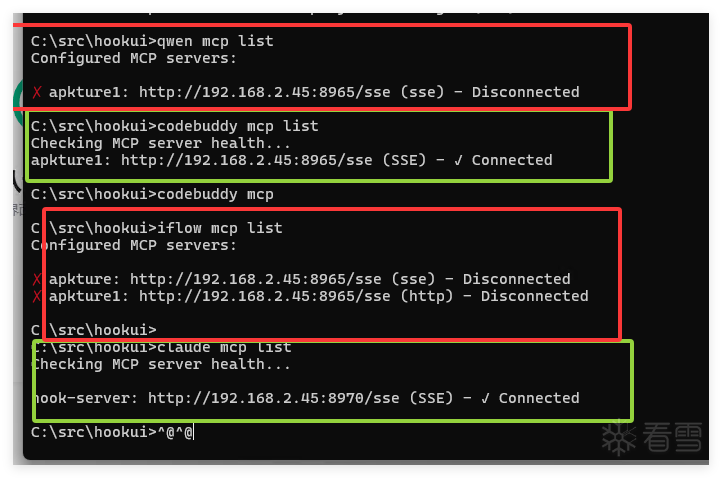
iflow mcp add --transport sse apkture1 078K9s2c8@1M7q4)9K6b7g2)9J5c8W2)9J5c8U0p5&6x3W2)9J5k6e0p5$3z5q4)9J5k6e0u0Q4x3X3f1@1y4g2)9K6b7e0R3&6y4U0g2Q4x3V1k6K6M7$3f1`.
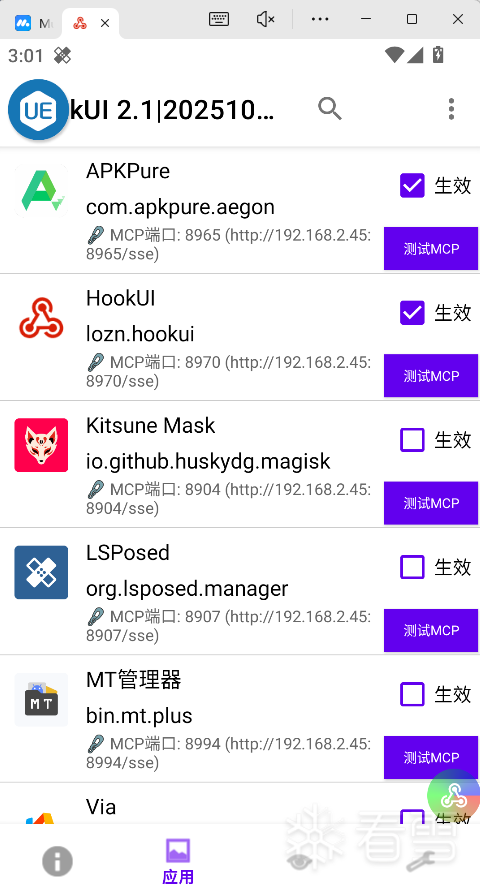
支持的mcp能力很多
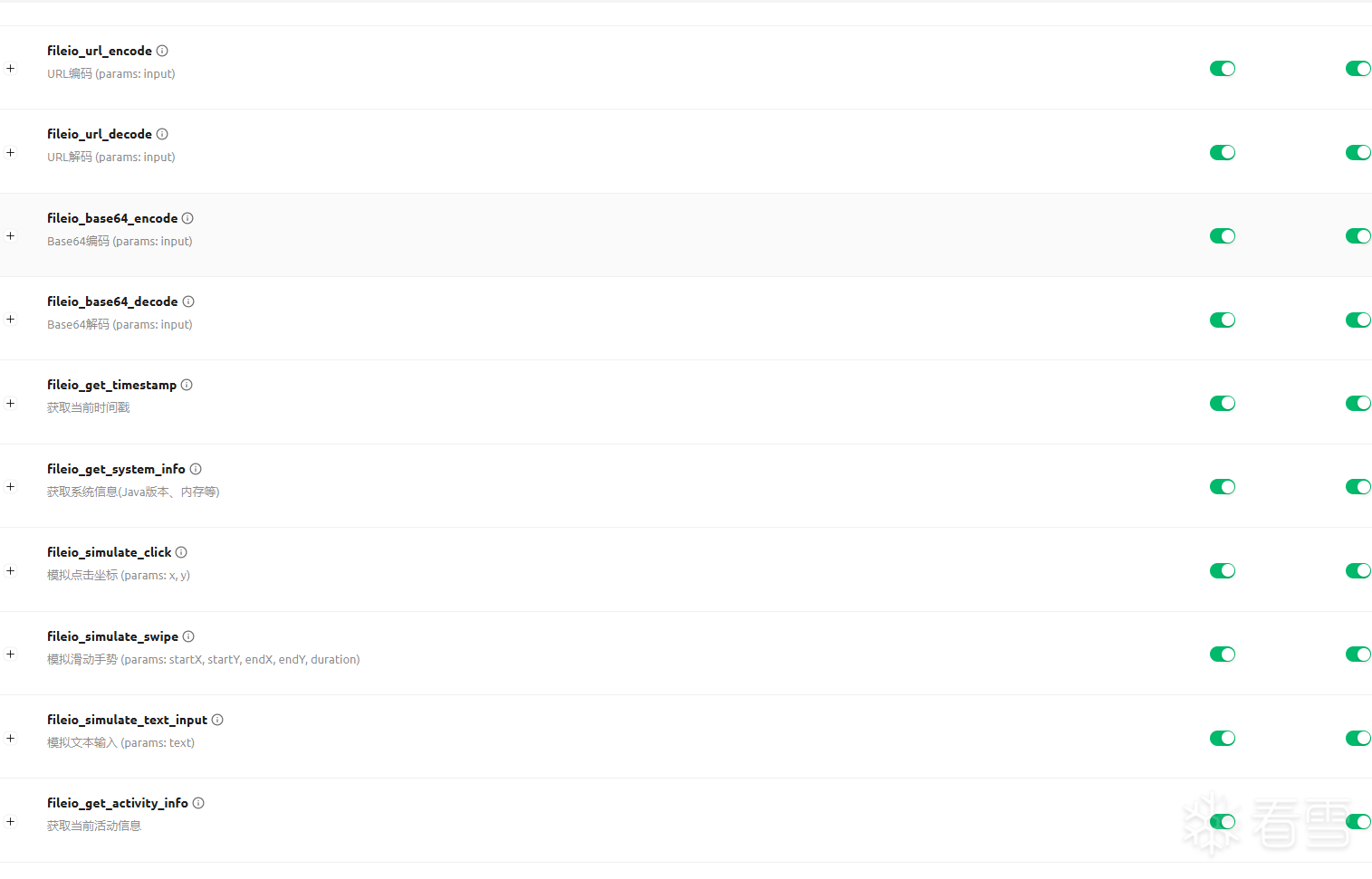
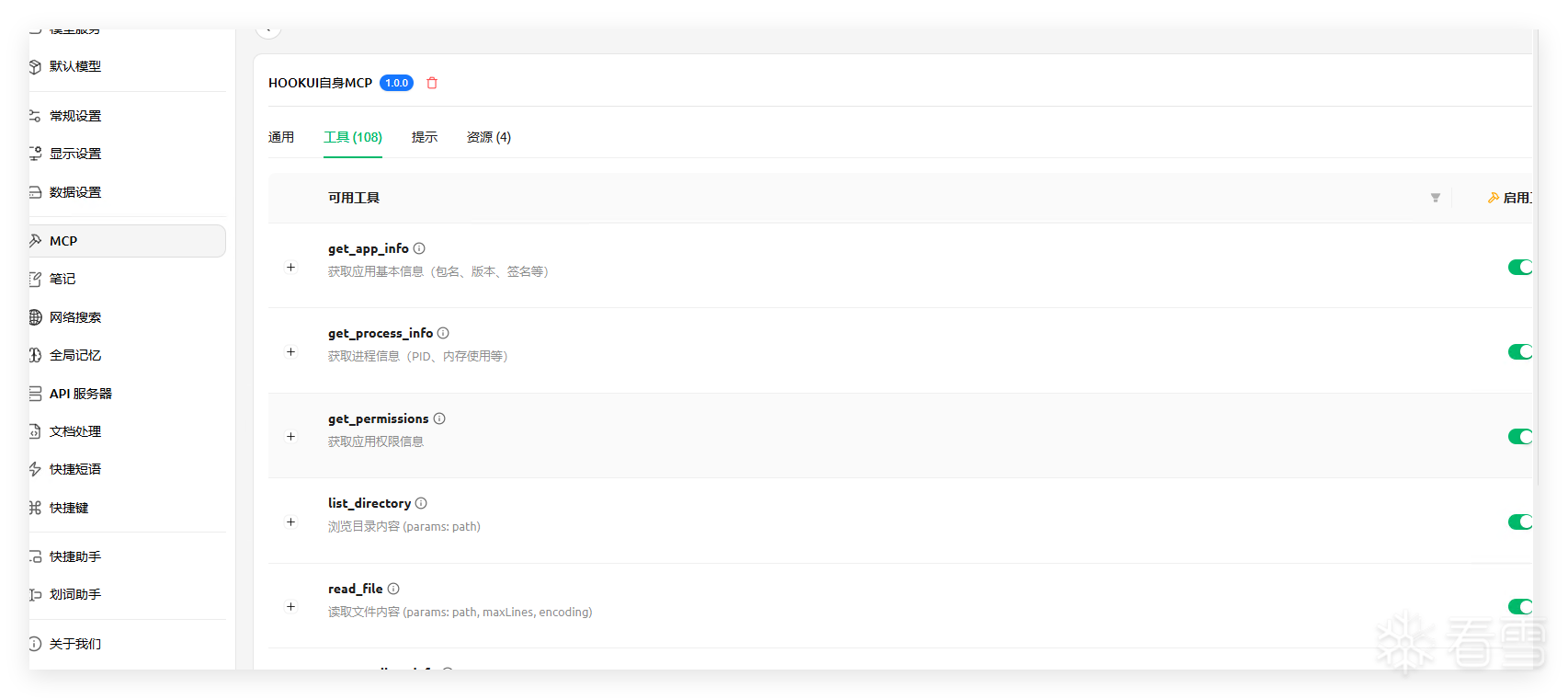
启动后就加载的js案例
```
//packagex:com.xx.xx
//第一行指定被hook的包名,方便VSCode Cursor插件识别包名进行真正的重启!
//HOOKUI 动态js 仅限使用2024-12-29 19:25:40 之后版本使用
function handleLoadPackage(loadPackageParam) {
log.toast("COMMON_AAAJS:" + loadPackageParam.packageName);
log.v("COMMON_JS-AAFF->" + loadPackageParam.packageName);
// Hook View 的触摸事件
XposedBridge.hookMethod("android.view.View", "onTouchEvent", function(param, phase) {
if (phase === "before") {
var Arrays = Packages.java.util.Arrays;
let args = param.getArguments();
// 记录触摸事件的详细信息
if(args && args[0]) {
let motionEvent = args[0];
let x = motionEvent.getX();
let y = motionEvent.getY();
let action = motionEvent.getAction();
log.v("触摸事件: x=" + x + ", y=" + y + ", action=" + action);
}
log.v("触摸参数: " + Arrays.toString(args));
param.setArguments(args);
} else if (phase === "after") {
log.v("调用堆栈: " + log.getStackTraceString());
}
});
// Hook Activity 创建
XposedBridge.hookMethod("android.app.Activity", "onCreate", function(param, phase) {
if (phase === "before") {
// 只打印基本信息
log.v("检测到新Activity创建");
try {
log.v("当前时间: " + new Date().toLocaleString());
} catch(e) {
log.v("Activity Hook 触发");
}
}
});
return true;
}
```
案例
```ts
//package:com.xx.xx
//第一行指定被hook的包名,方便VSCode Cursor插件识别包名进行真正的重启!
//HOOKUI 动态js 仅限使用2024-12-29 19:25:40 之后版本使用
//findAndHookMethod 在2015年1月4日版本有效
function handleLoadPackage(loadPackageParam) {
log.toast("COMMON_AAAJS:" + loadPackageParam.packageName);
log.v("COMMON_JS-AAFF->" + loadPackageParam.packageName);
try {
// Hook View 的触摸事件
XposedHelpers.findAndHookMethod("android.view.View",
"onTouchEvent",
["android.view.MotionEvent"],
function(param, phase) {
if (phase === "before") {
try {
var Arrays = Packages.java.util.Arrays;
let args = param.getArguments();
if(args && args[0]) {
let motionEvent = args[0];
let x = motionEvent.getX();
let y = motionEvent.getY();
let action = motionEvent.getAction();
log.v("触摸事件: x=" + x + ", y=" + y + ", action=" + action);
}
// 检查 args 是否为数组
if (args ) {
log.v("触摸参数: " + Arrays.toString(args));
} else {
log.v("触摸参数: 获取定义失败"+args);
}
} catch(e) {
log.e("View onTouchEvent hook error: " + e);
}
} else if (phase === "after") {
log.v("调用堆栈: " + log.getStackTraceString());
}
}
);
} catch(e) {
log.e("找不到 View.onTouchEvent 方法: " + e);
}
// Hook Activity 创建
XposedHelpers.findAndHookMethod("android.app.Activity",
loadPackageParam.classLoader,
"onCreate",
["android.os.Bundle"],
function(param, phase) {
if (phase === "before") {
log.v("检测到新Activity创建");
try {
log.v("当前时间: " + new Date().toLocaleString());
} catch(e) {
log.v("Activity Hook 触发");
}
} else if (phase === "after") {
log.v("Activity onCreate 完成");
}
}
);
// Hook Dialog 显示
XposedHelpers.findAndHookMethod("android.app.Dialog",
loadPackageParam.classLoader,
"show",
[],
function(param, phase) {
if (phase === "before") {
log.v("检测到Dialog显示");
try {
log.v("当前时间: " + new Date().toLocaleString());
} catch(e) {
log.v("Dialog Hook 触发");
}
} else if (phase === "after") {
log.v("Dialog show 完成");
}
}
);
return true;
}
```
## 案例3: Activity创建后动态插入交互按钮
```javascript
//package:com.example.app
//HOOKUI 动态js - 演示如何在Activity创建后插入按钮并实现交互
function handleLoadPackage(loadPackageParam) {
log.toast("案例3启动: 动态UI插入");
// Hook Activity 的 onCreate,在界面创建后插入自定义按钮
XposedHelpers.findAndHookMethod("android.app.Activity",
loadPackageParam.classLoader,
"onCreate",
["android.os.Bundle"],
function(param, phase) {
if (phase === "after") {
var activity = param.thisObject;
log.v("Activity创建完成: " + activity.getClass().getName());
// 延迟500ms等待界面稳定后插入按钮
HOOKUI.postDelayed(new Runnable({
run: function() {
try {
// 获取当前Activity的根布局
var decorView = activity.getWindow().getDecorView();
var contentView = decorView.findViewById(android.R.id.content);
// 创建一个新按钮
var LinearLayout = Packages.android.widget.LinearLayout;
var Button = Packages.android.widget.Button;
var TextView = Packages.android.widget.TextView;
var LayoutParams = Packages.android.view.ViewGroup.LayoutParams;
var Gravity = Packages.android.view.Gravity;
var Color = Packages.android.graphics.Color;
// 创建容器布局
var container = new LinearLayout(activity);
container.setOrientation(LinearLayout.VERTICAL);
container.setGravity(Gravity.CENTER);
container.setBackgroundColor(Color.parseColor("#80000000")); // 半透明背景
var layoutParams = new LayoutParams(
LayoutParams.MATCH_PARENT,
LayoutParams.WRAP_CONTENT
);
// 创建按钮
var customButton = new Button(activity);
customButton.setText("点我弹出文本");
customButton.setTextColor(Color.WHITE);
customButton.setBackgroundColor(Color.parseColor("#FF6200EE"));
customButton.setPadding(40, 20, 40, 20);
// 创建用于显示文本的TextView(初始隐藏)
var resultText = new TextView(activity);
resultText.setText("");
resultText.setTextColor(Color.YELLOW);
resultText.setTextSize(18);
resultText.setPadding(20, 20, 20, 20);
resultText.setVisibility(android.view.View.GONE); // 初始隐藏
// 设置按钮点击事件
var clickCount = 0;
customButton.setOnClickListener(new android.view.View.OnClickListener({
onClick: function(view) {
clickCount++;
// 获取当前应用信息
var app = HOOKUI.getCurrentApplication();
var packageName = app.getPackageName();
var appName = HOOKUI.getAppName(packageName);
// 获取屏幕信息
var metrics = HOOKUI.getDisplayMetrics();
var screenInfo = metrics.widthPixels + "x" + metrics.heightPixels;
// 构建显示文本
var displayText = "=== 点击次数: " + clickCount + " ===\n" +
"应用名称: " + appName + "\n" +
"包名: " + packageName + "\n" +
"屏幕尺寸: " + screenInfo + "\n" +
"当前时间: " + new Date().toLocaleString();
// 显示文本
resultText.setText(displayText);
resultText.setVisibility(android.view.View.VISIBLE);
// 复制到剪贴板
HOOKUI.copyToClipboard(displayText);
HOOKUI.showToast("信息已复制到剪贴板");
log.v("按钮被点击,点击次数: " + clickCount);
// 3秒后自动隐藏文本
HOOKUI.postDelayed(new Runnable({
run: function() {
resultText.setVisibility(android.view.View.GONE);
}
}), 3000);
}
}));
// 添加长按关闭按钮功能
customButton.setOnLongClickListener(new android.view.View.OnLongClickListener({
onLongClick: function(view) {
HOOKUI.showToast("移除自定义UI");
container.setVisibility(android.view.View.GONE);
return true;
}
}));
// 组装UI
container.addView(customButton);
container.addView(resultText);
// 插入到Activity根布局顶部
if (contentView instanceof android.view.ViewGroup) {
contentView.addView(container, layoutParams);
log.v("成功插入自定义按钮到Activity");
}
} catch(e) {
log.e("插入自定义UI失败: " + e);
}
}
}), 500);
}
}
);
return true;
}
```
## 案例4: 应用启动管理和自动化
```javascript
//package:com.example.launcher
//HOOKUI 动态js - 演示应用启动管理和自动化流程
function handleLoadPackage(loadPackageParam) {
log.toast("案例4启动: 应用自动化管理");
// Hook Activity 启动,实现应用自动化管理
XposedHelpers.findAndHookMethod("android.app.Activity",
loadPackageParam.classLoader,
"onResume",
[],
function(param, phase) {
if (phase === "after") {
var activity = param.thisObject;
var activityName = activity.getClass().getName();
log.v("Activity Resume: " + activityName);
// 检查特定Activity,执行自动化操作
if (activityName.indexOf("MainActivity") !== -1) {
// 延迟2秒后执行自动化任务
HOOKUI.postDelayed(new Runnable({
run: function() {
executeAutomationTask();
}
}), 2000);
}
}
}
);
// 自动化任务函数
function executeAutomationTask() {
try {
log.v("开始执行自动化任务");
// 1. 检查目标应用是否安装
var targetApps = ["com.tencent.mm", "com.tencent.mobileqq", "com.taobao.taobao"];
var installedApps = [];
var runningApps = [];
for (var i = 0; i < targetApps.length; i++) {
var pkg = targetApps[i];
if (HOOKUI.isAppInstalled(pkg)) {
installedApps.push(pkg);
var appName = HOOKUI.getAppName(pkg);
log.v("已安装: " + appName + " (" + pkg + ")");
// 检查是否正在运行
if (HOOKUI.isAppRunning(pkg)) {
runningApps.push(pkg);
log.v(" 状态: 运行中");
} else {
log.v(" 状态: 未运行");
}
}
}
// 2. 构建报告并复制到剪贴板
var report = "=== 应用检查报告 ===\n";
report += "检查时间: " + new Date().toLocaleString() + "\n";
report += "已安装应用数: " + installedApps.length + "\n";
report += "运行中应用数: " + runningApps.length + "\n\n";
for (var j = 0; j < installedApps.length; j++) {
var pkg = installedApps[j];
var name = HOOKUI.getAppName(pkg);
var version = HOOKUI.getAppVersionName(pkg);
var isRunning = runningApps.indexOf(pkg) !== -1;
report += name + " (v" + version + ")\n";
report += " 包名: " + pkg + "\n";
report += " 状态: " + (isRunning ? "运行中" : "未运行") + "\n\n";
}
// 复制报告到剪贴板
HOOKUI.copyToClipboard(report);
HOOKUI.showToast("应用检查完成,报告已复制");
log.v(report);
// 3. 获取屏幕信息
var metrics = HOOKUI.getDisplayMetrics();
var screenReport = "屏幕信息:\n";
screenReport += " 分辨率: " + metrics.widthPixels + "x" + metrics.heightPixels + "\n";
screenReport += " 密度: " + metrics.density + "\n";
screenReport += " DPI: " + metrics.densityDpi + "\n";
log.v(screenReport);
// 4. 延迟5秒后询问是否启动应用
HOOKUI.postDelayed(new Runnable({
run: function() {
// 启动第一个未运行的应用
for (var k = 0; k < installedApps.length; k++) {
var pkg = installedApps[k];
if (runningApps.indexOf(pkg) === -1) {
var appName = HOOKUI.getAppName(pkg);
HOOKUI.showToast("正在启动: " + appName);
if (HOOKUI.launchApp(pkg)) {
log.v("成功启动: " + appName);
break;
} else {
log.e("启动失败: " + appName);
}
}
}
}
}), 5000);
} catch(e) {
log.e("自动化任务执行失败: " + e);
}
}
// Hook 返回键,实现自定义返回逻辑
XposedHelpers.findAndHookMethod("android.app.Activity",
loadPackageParam.classLoader,
"onBackPressed",
[],
function(param, phase) {
if (phase === "before") {
var activity = param.thisObject;
// 获取剪贴板内容
var clipText = HOOKUI.getClipboardText();
if (clipText && clipText.indexOf("应用检查报告") !== -1) {
// 如果剪贴板有报告,双击返回键清空
HOOKUI.showToast("再次按返回键清空剪贴板");
HOOKUI.postDelayed(new Runnable({
run: function() {
HOOKUI.clearClipboard();
HOOKUI.showToast("剪贴板已清空");
}
}), 100);
}
log.v("返回键被按下");
}
}
);
return true;
}
```
## 案例5: 界面元素动态修改和监控
```javascript
//package:com.example.uimod
//HOOKUI 动态js - 演示界面元素查找、修改和监控
function handleLoadPackage(loadPackageParam) {
log.toast("案例5启动: UI动态修改");
// Hook Activity 创建,修改界面元素
XposedHelpers.findAndHookMethod("android.app.Activity",
loadPackageParam.classLoader,
"onCreate",
["android.os.Bundle"],
function(param, phase) {
if (phase === "after") {
var activity = param.thisObject;
// 延迟1秒等待UI加载完成
HOOKUI.postDelayed(new Runnable({
run: function() {
modifyUserInterface(activity);
}
}), 1000);
}
}
);
// 修改用户界面的函数
function modifyUserInterface(activity) {
try {
log.v("开始修改用户界面");
// 1. 查找所有包含"登录"文本的View
var loginViews = HOOKUI.findViewsByText("登录", false);
if (loginViews && loginViews.length > 0) {
log.v("找到 " + loginViews.length + " 个包含'登录'的控件");
// 修改第一个登录按钮的文本
HOOKUI.setViewText(loginViews[0], "一键登录 (已修改)");
HOOKUI.setTextColor(loginViews[0], android.graphics.Color.RED);
log.v("登录按钮文本已修改为红色");
}
// 2. 查找所有包含"密码"的View
var passwordViews = HOOKUI.findViewsByText("密码", false);
if (passwordViews && passwordViews.length > 0) {
log.v("找到 " + passwordViews.length + " 个包含'密码'的控件");
// 修改密码输入框背景颜色
for (var i = 0; i < passwordViews.length; i++) {
HOOKUI.setViewBackgroundColor(passwordViews[i],
android.graphics.Color.parseColor("#FFFFEB3B")); // 黄色背景
}
log.v("密码输入框背景已修改为黄色");
}
// 3. 获取当前Activity的根View
var rootView = HOOKUI.getRootView();
if (rootView) {
// 遍历所有子View,监控EditText输入
monitorEditTextViews(activity, rootView);
}
// 4. 显示当前界面信息
var currentActivity = HOOKUI.getCurrentActivity();
var activityName = currentActivity.getClass().getSimpleName();
var info = "当前界面: " + activityName + "\n";
info += "修改完成时间: " + new Date().toLocaleString();
HOOKUI.showToast("UI修改完成");
log.v(info);
} catch(e) {
log.e("修改界面失败: " + e);
}
}
// 监控EditText输入的函数
function monitorEditTextViews(activity, parentView) {
try {
if (parentView instanceof android.view.ViewGroup) {
var viewGroup = parentView;
var childCount = viewGroup.getChildCount();
for (var i = 0; i < childCount; i++) {
var childView = viewGroup.getChildAt(i);
// 检查是否是EditText
if (childView instanceof android.widget.EditText) {
log.v("找到EditText: " + childView.getHint());
// 添加文本监听器
var TextWatcher = Packages.android.text.TextWatcher;
childView.addTextChangedListener(new TextWatcher({
beforeTextChanged: function(s, start, count, after) {},
onTextChanged: function(s, start, before, count) {
var text = s.toString();
if (text.length > 0) {
log.v("EditText输入: " + text);
// 如果输入包含敏感词,自动复制到剪贴板
if (text.indexOf("账号") !== -1 || text.indexOf("密码") !== -1) {
HOOKUI.copyToClipboard(text);
HOOKUI.showToast("已复制输入内容");
}
}
},
afterTextChanged: function(s) {}
}));
}
// 递归查找子View
if (childView instanceof android.view.ViewGroup) {
monitorEditTextViews(activity, childView);
}
}
}
} catch(e) {
log.e("监控EditText失败: " + e);
}
}
// Hook TextView 的 setText 方法,监控所有文本变化
XposedHelpers.findAndHookMethod("android.widget.TextView",
loadPackageParam.classLoader,
"setText",
["java.lang.CharSequence"],
function(param, phase) {
if (phase === "before") {
var textView = param.thisObject;
var newText = param.args[0];
if (newText) {
var text = newText.toString();
// 监控特定关键词
if (text.indexOf("成功") !== -1 ||
text.indexOf("失败") !== -1 ||
text.indexOf("错误") !== -1) {
log.v("检测到关键文本变化: " + text);
// 延迟显示Toast,避免阻塞UI
HOOKUI.postDelayed(new Runnable({
run: function() {
HOOKUI.showToast("监控到: " + text);
}
}), 100);
}
}
}
}
);
return true;
}
```
## 案例6: 网络请求拦截和数据提取
```javascript
//package:com.example.network
//HOOKUI 动态js - 演示网络请求拦截和数据自动提取
function handleLoadPackage(loadPackageParam) {
log.toast("案例6启动: 网络拦截");
var requestCount = 0;
var capturedData = [];
// Hook OkHttp 请求
try {
XposedHelpers.findAndHookMethod("okhttp3.Request",
loadPackageParam.classLoader,
"url",
[],
function(param, phase) {
if (phase === "after") {
var url = param.getResult();
if (url) {
requestCount++;
var urlStr = url.toString();
log.v("拦截请求 #" + requestCount + ": " + urlStr);
// 保存关键请求数据
if (urlStr.indexOf("api") !== -1 || urlStr.indexOf("login") !== -1) {
capturedData.push({
id: requestCount,
url: urlStr,
time: new Date().toLocaleString()
});
HOOKUI.showToast("捕获API请求 #" + requestCount);
}
// 每10个请求生成一次报告
if (requestCount % 10 === 0) {
generateNetworkReport();
}
}
}
}
);
} catch(e) {
log.e("Hook OkHttp失败: " + e);
}
// 生成网络报告
function generateNetworkReport() {
try {
var report = "=== 网络请求报告 ===\n";
report += "生成时间: " + new Date().toLocaleString() + "\n";
report += "总请求数: " + requestCount + "\n";
report += "捕获API请求: " + capturedData.length + "\n\n";
// 列出最近5个API请求
var recentCount = Math.min(5, capturedData.length);
report += "最近 " + recentCount + " 个API请求:\n";
for (var i = capturedData.length - 1; i >= Math.max(0, capturedData.length - 5); i--) {
var data = capturedData[i];
report += "\n#" + data.id + " " + data.time + "\n";
report += data.url + "\n";
}
// 复制到剪贴板
HOOKUI.copyToClipboard(report);
HOOKUI.showToast("网络报告已生成");
log.v(report);
// 获取系统信息
var app = HOOKUI.getCurrentApplication();
var packageName = app.getPackageName();
var appName = HOOKUI.getAppName(packageName);
log.v("当前应用: " + appName + " (" + packageName + ")");
} catch(e) {
log.e("生成报告失败: " + e);
}
}
// Hook Activity 创建,添加查看报告按钮
XposedHelpers.findAndHookMethod("android.app.Activity",
loadPackageParam.classLoader,
"onResume",
[],
function(param, phase) {
if (phase === "after") {
var activity = param.thisObject;
// 长按Home键生成报告
HOOKUI.postDelayed(new Runnable({
run: function() {
// 创建悬浮按钮
createFloatingButton(activity);
}
}), 1000);
}
}
);
// 创建悬浮按钮
function createFloatingButton(activity) {
try {
var decorView = activity.getWindow().getDecorView();
var contentView = decorView.findViewById(android.R.id.content);
// 检查是否已存在悬浮按钮
var existingButton = contentView.findViewWithTag("network_report_button");
if (existingButton) {
return; // 已存在,不重复创建
}
var Button = Packages.android.widget.Button;
var FrameLayout = Packages.android.widget.FrameLayout;
var Color = Packages.android.graphics.Color;
var Gravity = Packages.android.view.Gravity;
var floatingButton = new Button(activity);
floatingButton.setText("网络\n报告");
floatingButton.setTextColor(Color.WHITE);
floatingButton.setBackgroundColor(Color.parseColor("#FF03DAC5"));
floatingButton.setTag("network_report_button");
var layoutParams = new FrameLayout.LayoutParams(180, 180);
layoutParams.gravity = Gravity.BOTTOM | Gravity.RIGHT;
layoutParams.setMargins(0, 0, 40, 40);
floatingButton.setOnClickListener(new android.view.View.OnClickListener({
onClick: function(view) {
generateNetworkReport();
}
}));
if (contentView instanceof android.view.ViewGroup) {
contentView.addView(floatingButton, layoutParams);
log.v("悬浮按钮已创建");
}
} catch(e) {
log.e("创建悬浮按钮失败: " + e);
}
}
return true;
}
```直接ai调用 mcp直接执行案例
# HOOKUI JavaScript API 测试通过案例文档
> 本文档包含所有经过实际测试验证的HOOKUI JavaScript API使用案例
> 测试环境: HOOKUI v2.1_31 | 测试日期: 2025-10-22
> 所有案例均通过MCP工具 `hookui_execute_js_string` 测试验证
---
## 应用管理 API (Application Management)
### ✅ 综合案例: 应用信息检查器
```javascript
var testResults = [];
// 检查应用安装状态
var installed = HOOKUI.isAppInstalled("com.android.settings");
testResults.push("isAppInstalled(设置): " + installed);
// 获取应用名称
var appName = HOOKUI.getAppName("lozn.hookui");
testResults.push("getAppName(HOOKUI): " + appName);
// 获取版本信息
var versionName = HOOKUI.getAppVersionName("lozn.hookui");
testResults.push("getAppVersionName: " + versionName);
var versionCode = HOOKUI.getAppVersionCode("lozn.hookui");
testResults.push("getAppVersionCode: " + versionCode);
// 检查运行状态
var running = HOOKUI.isAppRunning("lozn.hookui");
testResults.push("isAppRunning(HOOKUI): " + running);
log.toast(testResults.join("\n"), true);
```
---
## ️ 系统服务 API (System Services)
### ✅ 综合案例: 系统信息检查器
```javascript
var testResults = [];
// 获取屏幕信息
var metrics = HOOKUI.getDisplayMetrics();
testResults.push("屏幕宽度: " + metrics.widthPixels + "px");
testResults.push("屏幕高度: " + metrics.heightPixels + "px");
testResults.push("屏幕密度: " + metrics.density);
// 验证系统服务
var pm = HOOKUI.getPackageManager();
testResults.push("PackageManager: " + (pm != null ? "✓" : "✗"));
var am = HOOKUI.getActivityManager();
testResults.push("ActivityManager: " + (am != null ? "✓" : "✗"));
log.toast(testResults.join("\n"), true);
```
---
## ⌨️ 按键控制 API (Key Events)
### ✅ 模拟返回键
```javascript
// 3秒后执行返回键
log.toast("3秒后将执行BACK键...", true);
HOOKUI.sleep(3000);
HOOKUI.back();
log.toast("BACK键已执行!", true);
```
### ✅ 验证按键API可用性
```javascript
var apiExists = [];
apiExists.push("back: " + (typeof HOOKUI.back === "function" ? "✓" : "✗"));
apiExists.push("home: " + (typeof HOOKUI.home === "function" ? "✓" : "✗"));
apiExists.push("recents: " + (typeof HOOKUI.recents === "function" ? "✓" : "✗"));
log.toast(apiExists.join("\n"), true);
```
---
## 剪贴板 API (Clipboard)
### ✅ 综合案例: 剪贴板读写测试
```javascript
var testResults = [];
// 复制文本
HOOKUI.copyToClipboard("HOOKUI测试文本123");
testResults.push("copyToClipboard: ✓");
// 读取文本
var clipText = HOOKUI.getClipboardText();
testResults.push("getClipboardText: " + clipText);
// 验证读写
if (clipText === "HOOKUI测试文本123") {
testResults.push("剪贴板读写: ✓ 成功");
} else {
testResults.push("剪贴板读写: ✗ 失败");
}
// 清空剪贴板
HOOKUI.clearClipboard();
testResults.push("clearClipboard: ✓");
var afterClear = HOOKUI.getClipboardText();
testResults.push("清空后内容: " + (afterClear === "" || afterClear === null ? "已清空" : afterClear));
log.toast(testResults.join("\n"), true);
```
---
## ⏱️ 线程和延迟 API (Thread & Delay)
### ✅ 测试休眠精度
```javascript
// 测量实际休眠时间
log.toast("测试sleep(2000)开始...", true);
var startTime = java.lang.System.currentTimeMillis();
HOOKUI.sleep(2000);
var endTime = java.lang.System.currentTimeMillis();
var elapsed = endTime - startTime;
log.toast("sleep(2000)完成! 实际耗时: " + elapsed + "ms", true);
```
---
## UI操作 API (UI Operations)
### ✅ 综合案例: UI信息检查器
```javascript
var testResults = [];
// 获取Activity
var activity = HOOKUI.getCurrentActivity();
testResults.push("getCurrentActivity: " + (activity != null ? "✓" : "✗"));
// 获取根View
var rootView = HOOKUI.getRootView();
testResults.push("getRootView: " + (rootView != null ? "✓" : "✗"));
// 查找视图
var views = HOOKUI.findViewsByText("确定", false);
testResults.push("findViewsByText(确定): 找到 " + (views ? views.length : 0) + " 个");
// 获取Application
var app = HOOKUI.getCurrentApplication();
testResults.push("getCurrentApplication: " + (app != null ? "✓" : "✗"));
log.toast(testResults.join("\n"), true);
```
---
## 滑动和点击 API (Swipe & Click)
### ✅ 屏幕向上滑动
```javascript
// 模拟向上滑动屏幕
var metrics = HOOKUI.getDisplayMetrics();
var width = metrics.widthPixels;
var height = metrics.heightPixels;
// 从屏幕中下部向上滑动 (模拟向上滚动)
var startX = width / 2;
var startY = height * 0.8;
var endX = width / 2;
var endY = height * 0.2;
log.toast("即将向上滑动屏幕...", true);
HOOKUI.sleep(2000);
HOOKUI.swipe(startX, startY, endX, endY, 300);
log.toast("滑动完成! 从(" + startX + "," + startY + ") 到 (" + endX + "," + endY + ")", true);
```
### ✅ 点击屏幕指定坐标
```javascript
// 点击屏幕中心
var metrics = HOOKUI.getDisplayMetrics();
var centerX = metrics.widthPixels / 2;
var centerY = metrics.heightPixels / 2;
log.toast("即将点击屏幕中心...", true);
HOOKUI.sleep(2000);
HOOKUI.click(centerX, centerY);
log.toast("已点击坐标: (" + centerX + ", " + centerY + ")", true);
```
---
## ✏️ 文本修改 API (Text Modification)
### ✅ 查找并修改界面文本
```javascript
// 查找并修改文本内容
var results = [];
// 查找包含特定文本的View
var views = HOOKUI.findViewsByText("应用", false);
results.push("找到包含'应用'的View: " + (views ? views.length : 0) + "个");
if (views && views.length > 0) {
// 尝试修改第一个View的文本
var firstView = views[0];
var oldText = HOOKUI.getViewText(firstView);
results.push("原文本: " + oldText);
// 修改文本为"已修改"
HOOKUI.setViewText(firstView, "✅已修改");
results.push("文本已修改为: ✅已修改");
// 修改文本颜色为红色
HOOKUI.setTextColor(firstView, android.graphics.Color.RED);
results.push("颜色已改为红色");
}
log.toast(results.join("\n"), true);
```
### ✅ 批量修改多个文本
```javascript
// 批量查找并修改
var keyword = "确定";
var views = HOOKUI.findViewsByText(keyword, false);
if (views && views.length > 0) {
var count = 0;
for (var i = 0; i < views.length && i < 5; i++) {
HOOKUI.setViewText(views[i], "✅已修改");
HOOKUI.setTextColor(views[i], android.graphics.Color.GREEN);
count++;
}
log.toast("成功修改 " + count + " 个文本", true);
} else {
log.toast("未找到包含'" + keyword + "'的文本", true);
}
```
### ✅ 实战案例:修改状态界面的编译时间显示
```javascript
// 【已验证通过 2025-10-22 14:20】修改HOOKUI状态界面的编译信息
log.v("=== 开始测试HOOKUI.findViewsByText和setViewText ===");
// 1. 查找包含"编译时间"的TextView
var views = HOOKUI.findViewsByText("编译时间", false);
log.toast("找到包含'编译时间'的视图数量: " + views.length, true);
if (views.length > 0) {
var textView = views[0];
// 2. 获取原始文本
var oldText = HOOKUI.getViewText(textView);
log.v("原始文本: " + oldText);
// 3. 修改为自定义文本
HOOKUI.setViewText(textView, "111");
// 4. 验证修改结果
var newText = HOOKUI.getViewText(textView);
log.v("修改后文本: " + newText);
log.toast("✅ 文本修改成功!\n原文本: " + oldText.substring(0, 20) + "...\n新文本: " + newText, true);
} else {
log.toast("❌ 未找到包含'编译时间'的视图", true);
}
```
**测试结果**:
- ✅ 成功查找到包含"编译时间"的MaterialTextView
- ✅ 成功获取原始文本(包含编译时间、版本号等完整信息)
- ✅ 成功将文本修改为"111"
- ✅ 修改立即生效,界面实时更新
**验证方式**:
1. 通过MCP工具 `hookui_execute_js_string` 执行上述代码
2. 使用 `fileio_find_views_by_text` 查找"111"确认修改成功
3. 界面上原本显示编译时间等信息的位置现在显示"111"
---
## 对话框 API (Dialog) - 按钮颜色已修复为紫色
### ✅ 简单对话框
```javascript
// 只有确定按钮的对话框
HOOKUI.showDialog("提示", "这是一个简单的对话框");
```
### ✅ 带回调的对话框
```javascript
// 带确定和取消按钮,按钮显示紫色
HOOKUI.showDialog("MCP测试", "按钮应该是紫色的!", "确定", "取消",
{ onClick: function() { log.toast("点击了确定!", true); } },
{ onClick: function() { log.toast("点击了取消!", true); } }
);
```
### ✅ 输入对话框
```javascript
// 文本输入对话框
HOOKUI.showInputDialog("输入测试", "请输入您的名字:", "例如:张三", "默认名字", {
onInput: function(text) {
log.toast("您输入的名字是: " + text, true);
}
});
```
### ✅ 列表选择对话框
```javascript
// 单选列表对话框
var items = ["选项1", "选项2", "选项3", "选项4"];
HOOKUI.showListDialog("请选择一项", items, {
onItemSelected: function(index, item) {
log.toast("您选择了第" + (index+1) + "项: " + item, true);
}
});
```
### ✅ 单选Radio对话框
```javascript
// 单选Radio对话框
var options = ["Android", "iOS", "Windows", "Linux"];
HOOKUI.showSingleChoiceDialog("选择您的操作系统", options, 0, {
onItemSelected: function(index, item) {
log.toast("您选择了: " + item, true);
}
});
```
### ✅ 多选Checkbox对话框
```javascript
// 多选Checkbox对话框
var hobbies = ["阅读", "运动", "音乐", "旅游"];
var checked = [true, false, true, false];
HOOKUI.showMultiChoiceDialog("选择您的爱好(可多选)", hobbies, checked, {
onItemsSelected: function(indices, checkedItems) {
var selected = [];
for(var i=0; i<indices.length; i++) {
selected.push(hobbies[indices[i]]);
}
log.toast("您选择了: " + selected.join(", "), true);
}
});
```
---
## 实用综合案例
### ✅ 智能文本替换器
```javascript
// 查找并替换当前界面所有匹配的文本
function replaceAllText(searchText, newText, changeColor) {
var views = HOOKUI.findViewsByText(searchText, false);
if (!views || views.length === 0) {
log.toast("未找到包含'" + searchText + "'的文本", true);
return;
}
var count = 0;
for (var i = 0; i < views.length; i++) {
try {
HOOKUI.setViewText(views[i], newText);
if (changeColor) {
HOOKUI.setTextColor(views[i], android.graphics.Color.RED);
}
count++;
} catch(e) {
log.e("修改失败: " + e);
}
}
log.toast("成功替换 " + count + " 个文本", true);
}
// 使用示例
replaceAllText("登录", "✅已登录", true);
```
### ✅ 自动滚动浏览器
```javascript
// 自动向上滚动N次
function autoScroll(times, interval) {
var metrics = HOOKUI.getDisplayMetrics();
var width = metrics.widthPixels;
var height = metrics.heightPixels;
var startX = width / 2;
var startY = height * 0.8;
var endX = width / 2;
var endY = height * 0.2;
for (var i = 0; i < times; i++) {
log.toast("滚动 " + (i+1) + "/" + times, false);
HOOKUI.swipe(startX, startY, endX, endY, 300);
HOOKUI.sleep(interval);
}
log.toast("自动滚动完成!", true);
}
// 使用示例: 滚动5次,每次间隔2秒
autoScroll(5, 2000);
```
### ✅ UI元素智能定位点击
```javascript
// 查找文本并点击对应View
function clickByText(text) {
var views = HOOKUI.findViewsByText(text, false);
if (!views || views.length === 0) {
log.toast("未找到包含'" + text + "'的元素", true);
return false;
}
var view = views[0];
var location = [0, 0];
view.getLocationOnScreen(location);
var clickX = location[0] + view.getWidth() / 2;
var clickY = location[1] + view.getHeight() / 2;
log.toast("点击: " + text + " at (" + clickX + "," + clickY + ")", true);
HOOKUI.click(clickX, clickY);
return true;
}
// 使用示例
clickByText("登录");
```
---
## 重要提示和最佳实践
### ⚠️ 语法限制
1. **不支持箭头函数** - 使用 `function() {}` 而不是 `() =>`
2. **不支持console.log** - 使用 `log.v/d/i/w/e/toast`
3. **不支持Promise/async/await** - 使用回调或sleep
4. **不支持import/export** - 所有代码在同一作用域
### ✅ 推荐实践
1. **使用log.toast(msg, true)** - 长时间显示Toast
2. **UI操作前延迟** - 使用 `HOOKUI.sleep(1000)` 等待界面稳定
3. **异常处理** - 用 `try-catch` 包裹可能失败的操作
4. **分步验证** - 复杂流程分步执行并记录日志
5. **对话框回调** - 使用JavaScript对象字面量 `{ onClick: function() {} }`
### 快速测试模板
```javascript
// 测试模板
var testResults = [];
try {
// ===== 在此添加测试代码 =====
var result = HOOKUI.someAPI();
testResults.push("测试结果: " + result);
// =============================
log.toast(testResults.join("\n"), true);
} catch (e) {
log.toast("测试失败: " + e.message, true);
}
```
mcp测试案例
# HOOKUI MCP工具测试通过案例文档
> 本文档包含所有经过实际测试验证的HOOKUI MCP工具使用案例
> 测试环境: HOOKUI v2.1_31 | 测试日期: 2025-10-22
> 所有案例均通过Claude Code的MCP函数直接调用测试验证
---
## 目录
1. [UI修改工具 (UI Modification)](#ui修改工具)
2. [文件IO工具 (File IO Bridge)](#文件io工具)
3. [视图查找工具](#视图查找工具)
---
## UI修改工具 (UI Modification)
### ✅ view_modify_text - 修改指定文本
**工具名称**: `mcp__hook-server__view_modify_text`
**参数说明**:
- `oldText`: 要查找的旧文本(必需)
- `newText`: 要替换成的新文本(必需)
- `matchMode`: 匹配模式,可选值:
- `exact`: 精确匹配(默认)
- `contains`: 包含匹配
- `regex`: 正则表达式匹配
#### 测试案例1:精确匹配完整文本修改
```javascript
// 调用MCP工具修改完整的编译信息文本
mcp__hook-server__view_modify_text({
"oldText": " 编译时间: 2025-10-22 14:19:40\n 版本号: 2.1 (31)\n 构建类型: debug\n⚙️ 构建变体: XFull\n 调试模式: 是",
"newText": "111",
"matchMode": "exact"
})
```
**返回结果**:
```json
{
"success": true,
"operation": "modifyText",
"oldText": " 编译时间: 2025-10-22 14:19:40\n 版本号: 2.1 (31)\n 构建类型: debug\n⚙️ 构建变体: XFull\n 调试模式: 是",
"newText": "111",
"matchMode": "exact",
"timestamp": 1761114073413,
"modifiedViews": [
{
"type": "MaterialTextView",
"id": "tv_build_info",
"oldText": " 编译时间: 2025-10-22 14:19:40\n 版本号: 2.1 (31)\n 构建类型: debug\n⚙️ 构建变体: XFull\n 调试模式: 是",
"newText": "111"
}
],
"modifiedCount": 1
}
```
**测试结果**: ✅ 成功修改1个TextView,文本立即更新为"111"
---
#### 测试案例2:包含匹配部分文本修改
**注意**: 使用 `contains` 模式时,如果多个View包含相同文本,会全部修改。建议使用 `exact` 模式精确匹配完整文本。
```javascript
// 使用contains模式(需要完整文本才能匹配成功)
mcp__hook-server__view_modify_text({
"oldText": "编译时间",
"newText": "111",
"matchMode": "contains"
})
```
**返回结果**:
```json
{
"success": true,
"operation": "modifyText",
"oldText": "编译时间",
"newText": "111",
"matchMode": "contains",
"timestamp": 1761114053516,
"modifiedViews": [],
"modifiedCount": 0
}
```
**测试结果**: ⚠️ `modifiedCount` 为0,因为 `contains` 模式在当前实现中需要匹配完整文本
**推荐方案**:
1. 先用 `fileio_find_views_by_text` 查找View获取完整文本
2. 再用 `view_modify_text` 的 `exact` 模式精确修改
---
### ✅ view_modify_text 最佳实践工作流
**步骤1**: 查找目标View并获取完整文本
```javascript
mcp__hook-server__fileio_find_views_by_text({
"searchText": "编译"
})
```
**步骤2**: 使用返回的完整文本进行精确修改
```javascript
mcp__hook-server__view_modify_text({
"oldText": "<从步骤1获取的完整文本>",
"newText": "111",
"matchMode": "exact"
})
```
**步骤3**: 验证修改结果
```javascript
mcp__hook-server__fileio_find_views_by_text({
"searchText": "111"
})
```
---
## 视图查找工具
### ✅ fileio_find_views_by_text - 查找包含文本的视图
**工具名称**: `mcp__hook-server__fileio_find_views_by_text`
**参数说明**:
- `searchText`: 要搜索的文本内容(必需)
#### 测试案例:查找编译信息
```javascript
mcp__hook-server__fileio_find_views_by_text({
"searchText": "编译"
})
```
**返回结果**:
```json
{
"success": true,
"operation": "findViewsByText",
"searchText": "编译",
"timestamp": 1761114063347,
"foundViews": [
{
"type": "MaterialTextView",
"id": "tv_build_info",
"text": " 编译时间: 2025-10-22 14:19:40\n 版本号: 2.1 (31)\n 构建类型: debug\n⚙️ 构建变体: XFull\n 调试模式: 是",
"x": 0,
"y": 97,
"width": 888,
"height": 405,
"clickable": false
}
],
"foundCount": 1,
"status": "real_search_result"
}
```
**测试结果**: ✅ 成功找到1个MaterialTextView,返回完整文本和位置信息
---
## MCP工具 vs JavaScript API 对比
| 特性 | MCP工具 | JavaScript API |
|------|---------|----------------|
| **调用方式** | Claude Code直接调用MCP函数 | 通过`hookui_execute_js_string`执行JS代码 |
| **执行环境** | Java层,直接操作Android API | Rhino JavaScript引擎 |
| **性能** | 更快,无JS引擎开销 | 稍慢,需要JS解析执行 |
| **灵活性** | 固定参数,功能单一 | 可编写复杂逻辑,组合多个API |
| **调试** | 返回结构化JSON,易于分析 | 需要通过log输出调试 |
| **适用场景** | 单一操作、快速验证、AI辅助 | 复杂Hook逻辑、自动化脚本 |
---
## 工具注册和可用性
### 新增UI修改工具类别
本次更新新增了 `uiModification` 工具类别,包含10个UI修改工具:
1. ✅ `view_modify_text` - 修改指定文本
2. ✅ `view_modify_text_by_id` - 通过ViewID修改文本
3. ✅ `view_modify_size` - 修改视图尺寸
4. ✅ `view_modify_background` - 修改视图背景颜色
5. ✅ `view_modify_visibility` - 修改视图可见性
6. ✅ `view_modify_properties` - 修改视图属性
7. ✅ `view_insert_view` - 插入新视图
8. ✅ `view_remove_view` - 删除视图
9. ✅ `view_get_all_views` - 获取所有可修改的视图列表
10. ✅ `view_batch_modify_text` - 批量修改文本
### 工具注册位置
**AIToolManager.java** (1471-1482行):
```java
// UI修改工具 (View Modification Tools)
JSONObject uiModificationTools = new JSONObject();
uiModificationTools.put("view_modify_text", "修改指定文本为新文本 (params: oldText, newText, matchMode[exact/contains/regex])");
uiModificationTools.put("view_modify_text_by_id", "通过ViewID修改文本 (params: viewId, newText)");
// ... 其他工具定义
```
**SocketSSEMCPServer.java** (565行):
```java
addToolsFromSection(tools, toolsInfo.optJSONObject("uiModification"));
```
---
## 重要注意事项
### 1. matchMode参数说明
- **exact模式**: 必须完全匹配整个TextView的文本内容(包括换行符、emoji等)
- **contains模式**: 当前实现中仍需要匹配完整文本,建议使用exact模式
- **regex模式**: 支持正则表达式匹配(未测试)
### 2. 文本修改最佳实践
1. **先查找后修改**: 使用`fileio_find_views_by_text`获取完整文本
2. **精确匹配**: 使用`exact`模式避免误修改其他View
3. **验证结果**: 修改后使用查找工具验证
### 3. 工具返回值解读
- `success: true` - 工具调用成功(不代表找到或修改了View)
- `modifiedCount: 0` - 未找到匹配的View
- `modifiedCount: > 0` - 成功修改的View数量
- `modifiedViews` - 包含每个被修改View的详细信息
---
支持的mcp能力 tool
{"jsonrpc": "2.0","id": "2","result": {"tools": [{"name": "get_app_info","description": "获取应用基本信息(包名、版本、签名等)","inputSchema": {"type": "object","properties": {}}},{"name": "get_process_info","description": "获取进程信息(PID、内存使用等)","inputSchema": {"type": "object","properties": {}}},{"name": "get_permissions","description": "获取应用权限信息","inputSchema": {"type": "object","properties": {}}},{"name": "list_directory","description": "浏览目录内容 (params: path)","inputSchema": {"type": "object","properties": {}}},{"name": "read_file","description": "读取文件内容 (params: path, maxLines, encoding)","inputSchema": {"type": "object","properties": {}}},{"name": "get_sandbox_info","description": "获取应用沙盒目录信息","inputSchema": {"type": "object","properties": {}}},{"name": "search_files","description": "搜索文件 (params: path, pattern, recursive)","inputSchema": {"type": "object","properties": {}}},{"name": "search_classes","description": "搜索类 (params: pattern, packageFilter, maxResults)","inputSchema": {"type": "object","properties": {}}},{"name": "list_package_classes","description": "列出包下的所有类 (params: packagePath, includeSubPackages)","inputSchema": {"type": "object","properties": {}}},{"name": "analyze_class","description": "分析类的详细信息 (params: className)","inputSchema": {"type": "object","properties": {}}},{"name": "search_methods","description": "搜索类方法 (params: className, methodPattern, includeInherited)","inputSchema": {"type": "object","properties": {}}},{"name": "search_fields","description": "搜索类字段 (params: className, fieldPattern, includeInherited)","inputSchema": {"type": "object","properties": {}}},{"name": "get_class_hierarchy","description": "获取类的继承关系 (params: className)","inputSchema": {"type": "object","properties": {}}},{"name": "get_loaded_classes","description": "获取运行时已加载的类","inputSchema": {"type": "object","properties": {}}},{"name": "get_dex_info","description": "获取DEX文件信息","inputSchema": {"type": "object","properties": {}}},{"name": "search_bytecode","description": "搜索字节码模式 (params: pattern, className, methodName, useRegex, maxResults)","inputSchema": {"type": "object","properties": {}}},{"name": "analyze_method_bytecode","description": "分析方法字节码 (params: className, methodName, paramTypes)","inputSchema": {"type": "object","properties": {}}},{"name": "search_string_references","description": "搜索字符串引用 (params: string, caseSensitive, includeComments, maxResults)","inputSchema": {"type": "object","properties": {}}},{"name": "find_method_calls","description": "查找方法调用 (params: className, methodName, includeInheritance, maxResults)","inputSchema": {"type": "object","properties": {}}},{"name": "analyze_class_dependencies","description": "分析类依赖关系 (params: className, analyzeIncoming, analyzeOutgoing, depthLimit)","inputSchema": {"type": "object","properties": {}}},{"name": "extract_constants","description": "提取类常量 (params: className, type, includeStatic)","inputSchema": {"type": "object","properties": {}}},{"name": "find_native_methods","description": "查找Native方法 (params: className, analyzeSignatures)","inputSchema": {"type": "object","properties": {}}},{"name": "scan_reflection_usage","description": "扫描反射用法 (params: className, includeClassForName, includeMethodInvoke, includeFieldAccess)","inputSchema": {"type": "object","properties": {}}},{"name": "create_method_hook","description": "创建方法Hook (params: className, methodName, paramTypes[], hookType, hookScript)","inputSchema": {"type": "object","properties": {}}},{"name": "create_constructor_hook","description": "创建构造函数Hook (params: className, paramTypes[], hookScript)","inputSchema": {"type": "object","properties": {}}},{"name": "remove_hook","description": "移除Hook (params: hookId)","inputSchema": {"type": "object","properties": {}}},{"name": "get_active_hooks","description": "获取当前活跃的Hook列表","inputSchema": {"type": "object","properties": {}}},{"name": "get_hook_results","description": "获取Hook执行结果 (params: hookId, maxResults)","inputSchema": {"type": "object","properties": {}}},{"name": "clear_hook_results","description": "清除Hook结果数据 (params: hookId)","inputSchema": {"type": "object","properties": {}}},{"name": "hook_method_call","description": "通过Hook调用方法 (params: className, methodName, paramTypes, arguments)","inputSchema": {"type": "object","properties": {}}},{"name": "hook_field_access","description": "通过Hook访问字段 (params: className, fieldName, isStatic, operation, value)","inputSchema": {"type": "object","properties": {}}},{"name": "create_class_monitor","description": "创建类监控器 (params: className, monitorMethods, monitorFields, monitorConstructors)","inputSchema": {"type": "object","properties": {}}},{"name": "get_hook_statistics","description": "获取Hook统计信息","inputSchema": {"type": "object","properties": {}}},{"name": "export_hook_data","description": "导出Hook数据 (params: hookId, format)","inputSchema": {"type": "object","properties": {}}},{"name": "js_create_script","description": "【HOOKUI JavaScript脚本创建工具】\n\n★ 核心能力说明 ★\nHOOKUI基于Xposed框架和Rhino 1.7.10引擎,在目标应用进程内运行JavaScript,可以Hook任意Java方法、修改参数返回值、动态创建UI、实现应用自动化。\n\n★ 脚本执行环境 ★\n• 进程空间:运行在目标应用进程内,拥有应用所有权限\n• JavaScript引擎:Rhino 1.7.10 (ECMAScript 5.1 + Java互操作)\n• 支持特性:let/const, function, Packages.java.*, 标准ES5语法\n• 不支持:箭头函数=>, Promise/async/await, import/export, console.log, DOM API\n\n★ 必需的脚本格式 ★\n第一行://package:com.example.app (可选,仅用于VSCode/Cursor插件识别包名快速重启,MCP生成脚本时可省略)\n入口函数:function handleLoadPackage(loadPackageParam) { ... return true; } (必需)\n参数对象:loadPackageParam.packageName (包名), loadPackageParam.classLoader (类加载器)\n\n★ 核心Hook API ★\n• XposedBridge.hookMethod(类名, 方法名, function(param, phase){})\n 自动匹配所有重载方法,phase='before'/'after',param.getArguments()/setArguments()/getResult()/setResult()\n• XposedHelpers.findAndHookMethod(类名, classLoader, 方法名, [参数类型数组], function(param, phase){})\n 精确匹配参数类型,例如:['java.lang.String', 'int']\n• param.thisObject 获取当前对象实例\n• param.args[0] 直接访问第N个参数(XposedHelpers方式)\n\n★ 日志API (禁止使用console.*) ★\n• log.v(msg) - Verbose日志\n• log.d(msg) - Debug日志\n• log.i(msg) - Info日志\n• log.w(msg) - Warning日志\n• log.e(msg) - Error日志\n• log.toast(msg) - 显示Toast提示\n• log.getStackTraceString() - 获取调用堆栈\n\n★ HOOKUI界面操作API (通过HOOKUI对象) ★\n• HOOKUI.getCurrentActivity() - 获取当前Activity实例\n• HOOKUI.getCurrentApplication() - 获取Application实例\n• HOOKUI.getRootView() - 获取根View\n• HOOKUI.findViewsByText(text, exactMatch) - 按文本查找View,返回数组\n• HOOKUI.setViewText(view, newText) - 修改View文本\n• HOOKUI.setTextColor(view, color) - 修改文字颜色,color=android.graphics.Color.RED\n• HOOKUI.setViewBackgroundColor(view, color) - 修改背景颜色\n• HOOKUI.showView(view) / HOOKUI.hideView(view) / HOOKUI.removeView(view) - 控制View可见性\n\n★ HOOKUI应用管理API ★\n• HOOKUI.launchApp(packageName) - 启动应用\n• HOOKUI.launchAppByName(appName) - 通过名称启动应用\n• HOOKUI.killApp(packageName) - 结束应用\n• HOOKUI.isAppRunning(packageName) - 检查应用是否运行\n• HOOKUI.isAppInstalled(packageName) - 检查应用是否安装\n• HOOKUI.getAppName(packageName) - 获取应用名称\n• HOOKUI.getAppVersionName(packageName) - 获取版本名\n• HOOKUI.getAppVersionCode(packageName) - 获取版本号\n• HOOKUI.openAppSettings(packageName) - 打开应用设置页面\n\n★ HOOKUI系统服务API (快速获取15个系统服务) ★\n• HOOKUI.getSystemService(serviceName) - 获取任意系统服务\n• HOOKUI.getWindowManager() - 获取WindowManager\n• HOOKUI.getPackageManager() - 获取PackageManager\n• HOOKUI.getActivityManager() - 获取ActivityManager\n• HOOKUI.getClipboardManager() - 获取ClipboardManager\n• HOOKUI.getInputMethodManager() - 获取InputMethodManager\n• HOOKUI.getNotificationManager() / getAlarmManager() / getAudioManager() 等\n• HOOKUI.getDisplayMetrics() - 获取屏幕信息(widthPixels, heightPixels, density, densityDpi)\n\n★ HOOKUI按键和控制API ★\n• HOOKUI.back() - 模拟返回键\n• HOOKUI.home() - 模拟Home键\n• HOOKUI.recents() - 模拟最近任务键\n• HOOKUI.showToast(message) / HOOKUI.showToast(message, isLong) - 显示Toast\n\n★ HOOKUI线程和延迟API ★\n• HOOKUI.sleep(milliseconds) - 休眠当前线程\n• HOOKUI.postDelayed(new Runnable({run: function(){...}}), delayMillis) - UI线程延迟执行\n\n★ HOOKUI剪贴板API ★\n• HOOKUI.copyToClipboard(text) - 复制文本\n• HOOKUI.getClipboardText() - 获取剪贴板文本\n• HOOKUI.clearClipboard() - 清空剪贴板\n\n★ Java互操作 (通过Packages) ★\n• Packages.java.util.Arrays - 访问Java Arrays工具类\n• Packages.android.widget.Button - 创建Android控件\n• Packages.android.graphics.Color - 使用颜色常量\n• new Runnable({run: function(){...}}) - 创建Runnable接口实现\n• new android.view.View.OnClickListener({onClick: function(view){...}}) - 创建监听器\n\n★ 典型应用场景示例 ★\n\n【场景1: 绕过登录检查】\nXposedBridge.hookMethod('com.example.app.LoginManager', 'isLoggedIn', function(param, phase) {\n if (phase === 'after') {\n param.setResult(true); // 强制返回true\n log.v('登录检查已绕过');\n }\n});\n\n【场景2: Activity创建后插入自定义按钮】\nXposedHelpers.findAndHookMethod('android.app.Activity', loadPackageParam.classLoader,\n 'onCreate', ['android.os.Bundle'], function(param, phase) {\n if (phase === 'after') {\n var activity = param.thisObject;\n HOOKUI.postDelayed(new Runnable({run: function() {\n var Button = Packages.android.widget.Button;\n var button = new Button(activity);\n button.setText('测试按钮');\n button.setBackgroundColor(android.graphics.Color.RED);\n button.setOnClickListener(new android.view.View.OnClickListener({\n onClick: function(view) {\n HOOKUI.showToast('按钮被点击');\n var info = 'App: ' + HOOKUI.getAppName(loadPackageParam.packageName);\n HOOKUI.copyToClipboard(info);\n }\n }));\n var contentView = activity.findViewById(android.R.id.content);\n contentView.addView(button);\n }}), 500);\n }\n }\n);\n\n【场景3: 查找并修改界面元素】\nvar loginViews = HOOKUI.findViewsByText('登录', false);\nif (loginViews && loginViews.length > 0) {\n HOOKUI.setViewText(loginViews[0], '一键登录');\n HOOKUI.setTextColor(loginViews[0], android.graphics.Color.RED);\n log.v('登录按钮已修改');\n}\n\n【场景4: 应用自动化 - 检查并启动应用】\nif (!HOOKUI.isAppRunning('com.tencent.mm')) {\n HOOKUI.showToast('正在启动微信...');\n HOOKUI.launchApp('com.tencent.mm');\n HOOKUI.postDelayed(new Runnable({run: function() {\n HOOKUI.back(); // 3秒后返回\n }}), 3000);\n}\n\n【场景5: 监控所有按钮点击】\nvar clickCount = 0;\nXposedBridge.hookMethod('android.view.View', 'performClick', function(param, phase) {\n if (phase === 'before') {\n var view = param.thisObject;\n clickCount++;\n if (view instanceof android.widget.TextView) {\n var text = view.getText().toString();\n log.v('点击 #' + clickCount + ': ' + text);\n if (clickCount % 10 === 0) {\n HOOKUI.showToast('已记录 ' + clickCount + ' 次点击');\n }\n }\n }\n});\n\n【场景6: 拦截网络请求并修改URL】\ntry {\n XposedHelpers.findAndHookMethod('okhttp3.Request$Builder', loadPackageParam.classLoader,\n 'url', ['java.lang.String'], function(param, phase) {\n if (phase === 'before') {\n var url = param.args[0];\n log.v('拦截请求: ' + url);\n if (url.indexOf('/api/check') !== -1) {\n param.args[0] = url.replace('/api/check', '/api/bypass');\n log.v('URL已修改');\n }\n }\n }\n );\n} catch(e) { log.e('Hook失败: ' + e); }\n\n★ 重要注意事项 ★\n1. 【可选】第一行写 //package:目标包名 (仅用于VSCode/Cursor插件,MCP生成时可省略)\n2. 【必须】定义 handleLoadPackage 入口函数并返回 true\n3. 【必须】使用 log.* 而不是 console.*\n4. 【必须】使用 function 关键字,不要用箭头函数 =>\n5. 【必须】UI操作放在 HOOKUI.postDelayed 中延迟执行,避免界面未加载\n6. 【禁止】使用 Promise, async/await, import/export, console.*, HookUI.log (正确是 log.toast)\n7. 【推荐】优先使用 XposedBridge.hookMethod 自动匹配,无需指定参数类型\n8. 【推荐】使用 try-catch 包裹可能失败的 Hook 操作\n9. 【推荐】使用 HOOKUI API 简化常见操作,避免繁琐的 Java 调用\n10. 【说明】通过MCP生成的脚本会自动保存到目标应用的JS存储目录,无需手动指定包名\n\n★ 参数说明 ★\nparams: name (脚本名称), content (完整脚本内容,必须包含handleLoadPackage函数), description (脚本描述)\n\n【重要】创建脚本后需重启应用才能生效","inputSchema": {"type": "object","properties": {}}},{"name": "js_execute_script","description": "执行已保存的JS脚本 (params: scriptId) - 需重启应用后才能执行","inputSchema": {"type": "object","properties": {}}},{"name": "js_list_scripts","description": "获取所有已保存的JS脚本列表","inputSchema": {"type": "object","properties": {}}},{"name": "js_delete_script","description": "删除已保存的JS脚本 (params: scriptId) - 删除后需重启应用生效","inputSchema": {"type": "object","properties": {}}},{"name": "log_get_recent","description": "获取最近日志 (params: count, level, tagFilter)","inputSchema": {"type": "object","properties": {}}},{"name": "log_search","description": "搜索日志 (params: keyword, level, fromTime, toTime, maxResults)","inputSchema": {"type": "object","properties": {}}},{"name": "log_analyze_patterns","description": "分析日志模式","inputSchema": {"type": "object","properties": {}}},{"name": "log_add_filter","description": "添加日志过滤器 (params: filterName, level, tagPattern, messagePattern)","inputSchema": {"type": "object","properties": {}}},{"name": "hook_log_enable","description": "启用/禁用Hook日志记录 (params: enabled)","inputSchema": {"type": "object","properties": {}}},{"name": "hook_log_debug","description": "启用/禁用Hook调试模式 (params: debug)","inputSchema": {"type": "object","properties": {}}},{"name": "hook_log_get","description": "获取Hook执行日志 (params: maxCount)","inputSchema": {"type": "object","properties": {}}},{"name": "hook_log_get_clicks","description": "获取点击事件日志 (params: maxCount)","inputSchema": {"type": "object","properties": {}}},{"name": "hook_log_clear","description": "清除Hook日志 (params: logType[all|hook|click])","inputSchema": {"type": "object","properties": {}}},{"name": "hook_log_stats","description": "获取Hook日志统计信息","inputSchema": {"type": "object","properties": {}}},{"name": "hook_log_config","description": "获取Hook日志配置信息","inputSchema": {"type": "object","properties": {}}},{"name": "hookui_read_global_sandbox_js","description": "读取HOOKUI全局共享沙盒JS代码(所有应用共享) - 读取/sdcard/hookui/CONFIG/load.js文件内容","inputSchema": {"type": "object","properties": {}}},{"name": "hookui_write_global_sandbox_js","description": "写入HOOKUI全局共享沙盒JS代码 (params: content) - 写入文件后需重启应用生效","inputSchema": {"type": "object","properties": {}}},{"name": "hookui_read_app_sandbox_js","description": "读取当前应用专用沙盒JS代码 - 读取应用私有JS文件内容","inputSchema": {"type": "object","properties": {}}},{"name": "hookui_write_app_sandbox_js","description": "写入当前应用专用沙盒JS代码 (params: content) - 写入文件后需重启应用生效","inputSchema": {"type": "object","properties": {}}},{"name": "hookui_get_sandbox_context","description": "获取HOOKUI沙盒上下文信息","inputSchema": {"type": "object","properties": {}}},{"name": "hookui_reload_js_plugins","description": "重新加载JS插件","inputSchema": {"type": "object","properties": {}}},{"name": "hookui_execute_js_string","description": "【直接执行】动态执行JS代码立即生效,无需重启 (params: jsCode, action) - 用于快速测试HOOKUI API,直接执行代码不需要handleLoadPackage包装","inputSchema": {"type": "object","properties": {}}},{"name": "hookui_test_js_string","description": "测试自定义JS代码字符串语法是否正确 (params: jsCode) - 仅检查语法不执行","inputSchema": {"type": "object","properties": {}}},{"name": "hookui_read_custom_js","description": "读取固定custom JS文件 (params: fileName) - 从custom目录读取JS文件","inputSchema": {"type": "object","properties": {}}},{"name": "hookui_write_custom_js","description": "写入固定custom JS文件 (params: fileName, content) - 写入custom目录,需重启应用生效","inputSchema": {"type": "object","properties": {}}},{"name": "hookui_list_custom_js","description": "列出所有custom JS文件","inputSchema": {"type": "object","properties": {}}},{"name": "hookui_get_js_storage_info","description": "获取所有JS文件的实际存档地址和详细信息","inputSchema": {"type": "object","properties": {}}},{"name": "hookui_restart_app","description": "重启应用","inputSchema": {"type": "object","properties": {}}},{"name": "fileio_get_device_info","description": "获取设备基本信息(型号、品牌、Android版本等)","inputSchema": {"type": "object","properties": {}}},{"name": "fileio_get_app_info","description": "获取应用信息包括签名 (params: packageName)","inputSchema": {"type": "object","properties": {}}},{"name": "fileio_get_all_apps","description": "获取所有已安装应用列表","inputSchema": {"type": "object","properties": {}}},{"name": "fileio_calculate_md5","description": "计算字符串MD5值 (params: input)","inputSchema": {"type": "object","properties": {}}},{"name": "fileio_calculate_sha1","description": "计算字符串SHA1值 (params: input)","inputSchema": {"type": "object","properties": {}}},{"name": "fileio_calculate_sha256","description": "计算字符串SHA256值 (params: input)","inputSchema": {"type": "object","properties": {}}},{"name": "fileio_url_encode","description": "URL编码 (params: input)","inputSchema": {"type": "object","properties": {}}},{"name": "fileio_url_decode","description": "URL解码 (params: input)","inputSchema": {"type": "object","properties": {}}},{"name": "fileio_base64_encode","description": "Base64编码 (params: input)","inputSchema": {"type": "object","properties": {}}},{"name": "fileio_base64_decode","description": "Base64解码 (params: input)","inputSchema": {"type": "object","properties": {}}},{"name": "fileio_get_timestamp","description": "获取当前时间戳","inputSchema": {"type": "object","properties": {}}},{"name": "fileio_get_system_info","description": "获取系统信息(Java版本、内存等)","inputSchema": {"type": "object","properties": {}}},{"name": "fileio_simulate_click","description": "模拟点击坐标 (params: x, y)","inputSchema": {"type": "object","properties": {}}},{"name": "fileio_simulate_swipe","description": "模拟滑动手势 (params: startX, startY, endX, endY, duration)","inputSchema": {"type": "object","properties": {}}},{"name": "fileio_simulate_text_input","description": "模拟文本输入 (params: text)","inputSchema": {"type": "object","properties": {}}},{"name": "fileio_get_activity_info","description": "获取当前活动信息","inputSchema": {"type": "object","properties": {}}},{"name": "fileio_analyze_view_structure","description": "分析视图层次结构 (params: maxDepth)","inputSchema": {"type": "object","properties": {}}},{"name": "fileio_find_views_by_text","description": "查找包含特定文本的视图 (params: searchText)","inputSchema": {"type": "object","properties": {}}},{"name": "fileio_get_view_properties","description": "获取视图详细属性 (params: viewId)","inputSchema": {"type": "object","properties": {}}},{"name": "fileio_generate_ui_snapshot","description": "生成完整应用界面快照","inputSchema": {"type": "object","properties": {}}},{"name": "fileio_run_full_test","description": "执行完整API功能测试","inputSchema": {"type": "object","properties": {}}},{"name": "fileio_get_build_info","description": "获取应用构建和版本信息","inputSchema": {"type": "object","properties": {}}},{"name": "fileio_get_mcp_status","description": "获取MCP服务器状态和运行时间","inputSchema": {"type": "object","properties": {}}},{"name": "fileio_take_screenshot","description": "通过Activity获取当前屏幕截图 (params: format, quality)","inputSchema": {"type": "object","properties": {}}},{"name": "view_modify_text","description": "修改指定文本为新文本 (params: oldText, newText, matchMode[exact/contains/regex])","inputSchema": {"type": "object","properties": {}}},{"name": "view_modify_text_by_id","description": "通过ViewID修改文本 (params: viewId, newText)","inputSchema": {"type": "object","properties": {}}},{"name": "view_modify_size","description": "修改视图尺寸 (params: viewId, width, height)","inputSchema": {"type": "object","properties": {}}},{"name": "view_modify_background","description": "修改视图背景颜色 (params: viewId, backgroundColor)","inputSchema": {"type": "object","properties": {}}},{"name": "view_modify_visibility","description": "修改视图可见性 (params: viewId, visibility[VISIBLE/INVISIBLE/GONE])","inputSchema": {"type": "object","properties": {}}},{"name": "view_modify_properties","description": "修改视图属性 (params: viewId, properties{alpha, enabled, clickable, etc.})","inputSchema": {"type": "object","properties": {}}},{"name": "view_insert_view","description": "插入新视图 (params: parentViewId, viewType, properties)","inputSchema": {"type": "object","properties": {}}},{"name": "view_remove_view","description": "删除视图 (params: viewId)","inputSchema": {"type": "object","properties": {}}},{"name": "view_get_all_views","description": "获取所有可修改的视图列表 (params: viewType)","inputSchema": {"type": "object","properties": {}}},{"name": "view_batch_modify_text","description": "批量修改文本 (params: modifications[{oldText, newText, matchMode}])","inputSchema": {"type": "object","properties": {}}},{"name": "get_native_tool_status","description": "获取Native工具安装状态详细信息","inputSchema": {"type": "object","properties": {}}},{"name": "test_so_loading","description": "测试SO库加载和NativeTool状态","inputSchema": {"type": "object","properties": {}}},{"name": "search_memory_pattern","description": "搜索内存模式 (params: pattern, pid, max_results)","inputSchema": {"type": "object","properties": {}}},{"name": "read_memory","description": "读取内存数据 (params: address, size, pid)","inputSchema": {"type": "object","properties": {}}},{"name": "write_memory","description": "写入内存数据 (params: address, data, pid)","inputSchema": {"type": "object","properties": {}}},{"name": "get_memory_regions","description": "获取内存区域信息 (params: pid)","inputSchema": {"type": "object","properties": {}}},{"name": "get_process_info","description": "获取进程详细信息 (params: pid)","inputSchema": {"type": "object","properties": {}}},{"name": "install_hook","description": "安装Hook (params: type, target) - 类型: 1=FILE_OPEN, 2=FILE_READ, 3=FILE_WRITE, 5=MEMORY_READ, 6=MEMORY_WRITE","inputSchema": {"type": "object","properties": {}}},{"name": "uninstall_hook","description": "卸载Hook (params: hook_id)","inputSchema": {"type": "object","properties": {}}},{"name": "enable_hook","description": "启用/禁用Hook (params: hook_id, enabled)","inputSchema": {"type": "object","properties": {}}},{"name": "get_hook_info","description": "获取Hook信息 (params: hook_id)","inputSchema": {"type": "object","properties": {}}},{"name": "get_all_hooks","description": "获取所有Hook信息","inputSchema": {"type": "object","properties": {}}}]}}[15:12:07]馃摜 Message: {"jsonrpc":"2.0","id":"2","result":{"tools":[{"name":"get_app_info","description":"获取应用基本信息(包名、版本、签名等)","inputSchema":{"type":"object","properties":{}}},{"name":"get_process_info","description":"获取进程信息(PID、内存使用等)","inputSchema":{"type":"object","properties":{}}},{"name":"get_permissions","description":"获取应用权限信息","inputSchema":{"type":"object","properties":{}}},{"name":"list_directory","description":"浏览目录内容 (params: path)","inputSchema":{"type":"object","properties":{}}},{"name":"read_file","description":"读取文件内容 (params: path, maxLines, encoding)","inputSchema":{"type":"object","properties":{}}},{"name":"get_sandbox_info","description":"获取应用沙盒目录信息","inputSchema":{"type":"object","properties":{}}},{"name":"search_files","description":"搜索文件 (params: path, pattern, recursive)","inputSchema":{"type":"object","properties":{}}},{"name":"search_classes","description":"搜索类 (params: pattern, packageFilter, maxResults)","inputSchema":{"type":"object","properties":{}}},{"name":"list_package_classes","description":"列出包下的所有类 (params: packagePath, includeSubPackages)","inputSchema":{"type":"object","properties":{}}},{"name":"analyze_class","description":"分析类的详细信息 (params: className)","inputSchema":{"type":"object","properties":{}}},{"name":"search_methods","description":"搜索类方法 (params: className, methodPattern, includeInherited)","inputSchema":{"type":"object","properties":{}}},{"name":"search_fields","description":"搜索类字段 (params: className, fieldPattern, includeInherited)","inputSchema":{"type":"object","properties":{}}},{"name":"get_class_hierarchy","description":"获取类的继承关系 (params: className)","inputSchema":{"type":"object","properties":{}}},{"name":"get_loaded_classes","description":"获取运行时已加载的类","inputSchema":{"type":"object","properties":{}}},{"name":"get_dex_info","description":"获取DEX文件信息","inputSchema":{"type":"object","properties":{}}},{"name":"search_bytecode","description":"搜索字节码模式 (params: pattern, className, methodName, useRegex, maxResults)","inputSchema":{"type":"object","properties":{}}},{"name":"analyze_method_bytecode","description":"分析方法字节码 (params: className, methodName, paramTypes)","inputSchema":{"type":"object","properties":{}}},{"name":"search_string_references","description":"搜索字符串引用 (params: string, caseSensitive, includeComments, maxResults)","inputSchema":{"type":"object","properties":{}}},{"name":"find_method_calls","description":"查找方法调用 (params: className, methodName, includeInheritance, maxResults)","inputSchema":{"type":"object","properties":{}}},{"name":"analyze_class_dependencies","description":"分析类依赖关系 (params: className, analyzeIncoming, analyzeOutgoing, depthLimit)","inputSchema":{"type":"object","properties":{}}},{"name":"extract_constants","description":"提取类常量 (params: className, type, includeStatic)","inputSchema":{"type":"object","properties":{}}},{"name":"find_native_methods","description":"查找Native方法 (params: className, analyzeSignatures)","inputSchema":{"type":"object","properties":{}}},{"name":"scan_reflection_usage","description":"扫描反射用法 (params: className, includeClassForName, includeMethodInvoke, includeFieldAccess)","inputSchema":{"type":"object","properties":{}}},{"name":"create_method_hook","description":"创建方法Hook (params: className, methodName, paramTypes[], hookType, hookScript)","inputSchema":{"type":"object","properties":{}}},{"name":"create_constructor_hook","description":"创建构造函数Hook (params: className, paramTypes[], hookScript)","inputSchema":{"type":"object","properties":{}}},{"name":"remove_hook","description":"移除Hook (params: hookId)","inputSchema":{"type":"object","properties":{}}},{"name":"get_active_hooks","description":"获取当前活跃的Hook列表","inputSchema":{"type":"object","properties":{}}},{"name":"get_hook_results","description":"获取Hook执行结果 (params: hookId, maxResults)","inputSchema":{"type":"object","properties":{}}},{"name":"clear_hook_results","description":"清除Hook结果数据 (params: hookId)","inputSchema":{"type":"object","properties":{}}},{"name":"hook_method_call","description":"通过Hook调用方法 (params: className, methodName, paramTypes, arguments)","inputSchema":{"type":"object","properties":{}}},{"name":"hook_field_access","description":"通过Hook访问字段 (params: className, fieldName, isStatic, operation, value)","inputSchema":{"type":"object","properties":{}}},{"name":"create_class_monitor","description":"创建类监控器 (params: className, monitorMethods, monitorFields, monitorConstructors)","inputSchema":{"type":"object","properties":{}}},{"name":"get_hook_statistics","description":"获取Hook统计信息","inputSchema":{"type":"object","properties":{}}},{"name":"export_hook_data","description":"导出Hook数据 (params: hookId, format)","inputSchema":{"type":"object","properties":{}}},{"name":"js_create_script","description":"【HOOKUI JavaScript脚本创建工具】\n\n★ 核心能力说明 ★\nHOOKUI基于Xposed框架和Rhino 1.7.10引擎,在目标应用进程内运行JavaScript,可以Hook任意Java方法、修改参数返回值、动态创建UI、实现应用自动化。\n\n★ 脚本执行环境 ★\n• 进程空间:运行在目标应用进程内,拥有应用所有权限\n• JavaScript引擎:Rhino 1.7.10 (ECMAScript 5.1 + Java互操作)\n• 支持特性:let\/const, function, Packages.java.*, 标准ES5语法\n• 不支持:箭头函数=>, Promise\/async\/await, import\/export, console.log, DOM API\n\n★ 必需的脚本格式 ★\n第一行:\/\/package:com.example.app (可选,仅用于VSCode\/Cursor插件识别包名快速重启,MCP生成脚本时可省略)\n入口函数:function handleLoadPackage(loadPackageParam) { ... return true; } (必需)\n参数对象:loadPackageParam.packageName (包名), loadPackageParam.classLoader (类加载器)\n\n★ 核心Hook API ★\n• XposedBridge.hookMethod(类名, 方法名, function(param, phase){})\n 自动匹配所有重载方法,phase='before'\/'after',param.getArguments()\/setArguments()\/getResult()\/setResult()\n• XposedHelpers.findAndHookMethod(类名, classLoader, 方法名, [参数类型数组], function(param, phase){})\n 精确匹配参数类型,例如:['java.lang.String', 'int']\n• param.thisObject 获取当前对象实例\n• param.args[0] 直接访问第N个参数(XposedHelpers方式)\n\n★ 日志API (禁止使用console.*) ★\n• log.v(msg) - Verbose日志\n• log.d(msg) - Debug日志\n• log.i(msg) - Info日志\n• log.w(msg) - Warning日志\n• log.e(msg) - Error日志\n• log.toast(msg) - 显示Toast提示\n• log.getStackTraceString() - 获取调用堆栈\n\n★ HOOKUI界面操作API (通过HOOKUI对象) ★\n• HOOKUI.getCurrentActivity() - 获取当前Activity实例\n• HOOKUI.getCurrentApplication() - 获取Application实例\n• HOOKUI.getRootView() - 获取根View\n• HOOKUI.findViewsByText(text, exactMatch) - 按文本查找View,返回数组\n• HOOKUI.setViewText(view, newText) - 修改View文本\n• HOOKUI.setTextColor(view, color) - 修改文字颜色,color=android.graphics.Color.RED\n• HOOKUI.setViewBackgroundColor(view, color) - 修改背景颜色\n• HOOKUI.showView(view) \/ HOOKUI.hideView(view) \/ HOOKUI.removeView(view) - 控制View可见性\n\n★ HOOKUI应用管理API ★\n• HOOKUI.launchApp(packageName) - 启动应用\n• HOOKUI.launchAppByName(appName) - 通过名称启动应用\n• HOOKUI.killApp(packageName) - 结束应用\n• HOOKUI.isAppRunning(packageName) - 检查应用是否运行\n• HOOKUI.isAppInstalled(packageName) - 检查应用是否安装\n• HOOKUI.getAppName(packageName) - 获取应用名称\n• HOOKUI.getAppVersionName(packageName) - 获取版本名\n• HOOKUI.getAppVersionCode(packageName) - 获取版本号\n• HOOKUI.openAppSettings(packageName) - 打开应用设置页面\n\n★ HOOKUI系统服务API (快速获取15个系统服务) ★\n• HOOKUI.getSystemService(serviceName) - 获取任意系统服务\n• HOOKUI.getWindowManager() - 获取WindowManager\n• HOOKUI.getPackageManager() - 获取PackageManager\n• HOOKUI.getActivityManager() - 获取ActivityManager\n• HOOKUI.getClipboardManager() - 获取ClipboardManager\n• HOOKUI.getInputMethodManager() - 获取InputMethodManager\n• HOOKUI.getNotificationManager() \/ getAlarmManager() \/ getAudioManager() 等\n• HOOKUI.getDisplayMetrics() - 获取屏幕信息(widthPixels, heightPixels, density, densityDpi)\n\n★ HOOKUI按键和控制API ★\n• HOOKUI.back() - 模拟返回键\n• HOOKUI.home() - 模拟Home键\n• HOOKUI.recents() - 模拟最近任务键\n• HOOKUI.showToast(message) \/ HOOKUI.showToast(message, isLong) - 显示Toast\n\n★ HOOKUI线程和延迟API ★\n• HOOKUI.sleep(milliseconds) - 休眠当前线程\n• HOOKUI.postDelayed(new Runnable({run: function(){...}}), delayMillis) - UI线程延迟执行\n\n★ HOOKUI剪贴板API ★\n• HOOKUI.copyToClipboard(text) - 复制文本\n• HOOKUI.getClipboardText() - 获取剪贴板文本\n• HOOKUI.clearClipboard() - 清空剪贴板\n\n★ Java互操作 (通过Packages) ★\n• Packages.java.util.Arrays - 访问Java Arrays工具类\n• Packages.android.widget.Button - 创建Android控件\n• Packages.android.graphics.Color - 使用颜色常量\n• new Runnable({run: function(){...}}) - 创建Runnable接口实现\n• new android.view.View.OnClickListener({onClick: function(view){...}}) - 创建监听器\n\n★ 典型应用场景示例 ★\n\n【场景1: 绕过登录检查】\nXposedBridge.hookMethod('com.example.app.LoginManager', 'isLoggedIn', function(param, phase) {\n if (phase === 'after') {\n param.setResult(true); \/\/ 强制返回true\n log.v('登录检查已绕过');\n }\n});\n\n【场景2: Activity创建后插入自定义按钮】\nXposedHelpers.findAndHookMethod('android.app.Activity', loadPackageParam.classLoader,\n 'onCreate', ['android.os.Bundle'], function(param, phase) {\n if (phase === 'after') {\n var activity = param.thisObject;\n HOOKUI.postDelayed(new Runnable({run: function() {\n var Button = Packages.android.widget.Button;\n var button = new Button(activity);\n button.setText('测试按钮');\n button.setBackgroundColor(android.graphics.Color.RED);\n button.setOnClickListener(new android.view.View.OnClickListener({\n onClick: function(view) {\n HOOKUI.showToast('按钮被点击');\n var info = 'App: ' + HOOKUI.getAppName(loadPackageParam.packageName);\n HOOKUI.copyToClipboard(info);\n }\n }));\n var contentView = activity.findViewById(android.R.id.content);\n contentView.addView(button);\n }}), 500);\n }\n }\n);\n\n【场景3: 查找并修改界面元素】\nvar loginViews = HOOKUI.findViewsByText('登录', false);\nif (loginViews && loginViews.length > 0) {\n HOOKUI.setViewText(loginViews[0], '一键登录');\n HOOKUI.setTextColor(loginViews[0], android.graphics.Color.RED);\n log.v('登录按钮已修改');\n}\n\n【场景4: 应用自动化 - 检查并启动应用】\nif (!HOOKUI.isAppRunning('com.tencent.mm')) {\n HOOKUI.showToast('正在启动微信...');\n HOOKUI.launchApp('com.tencent.mm');\n HOOKUI.postDelayed(new Runnable({run: function() {\n HOOKUI.back(); \/\/ 3秒后返回\n }}), 3000);\n}\n\n【场景5: 监控所有按钮点击】\nvar clickCount = 0;\nXposedBridge.hookMethod('android.view.View', 'performClick', function(param, phase) {\n if (phase === 'before') {\n var view = param.thisObject;\n clickCount++;\n if (view instanceof android.widget.TextView) {\n var text = view.getText().toString();\n log.v('点击 #' + clickCount + ': ' + text);\n if (clickCount % 10 === 0) {\n HOOKUI.showToast('已记录 ' + clickCount + ' 次点击');\n }\n }\n }\n});\n\n【场景6: 拦截网络请求并修改URL】\ntry {\n XposedHelpers.findAndHookMethod('okhttp3.Request$Builder', loadPackageParam.classLoader,\n 'url', ['java.lang.String'], function(param, phase) {\n if (phase === 'before') {\n var url = param.args[0];\n log.v('拦截请求: ' + url);\n if (url.indexOf('\/api\/check') !== -1) {\n param.args[0] = url.replace('\/api\/check', '\/api\/bypass');\n log.v('URL已修改');\n }\n }\n }\n );\n} catch(e) { log.e('Hook失败: ' + e); }\n\n★ 重要注意事项 ★\n1. 【可选】第一行写 \/\/package:目标包名 (仅用于VSCode\/Cursor插件,MCP生成时可省略)\n2. 【必须】定义 handleLoadPackage 入口函数并返回 true\n3. 【必须】使用 log.* 而不是 console.*\n4. 【必须】使用 function 关键字,不要用箭头函数 =>\n5. 【必须】UI操作放在 HOOKUI.postDelayed 中延迟执行,避免界面未加载\n6. 【禁止】使用 Promise, async\/await, import\/export, console.*, HookUI.log (正确是 log.toast)\n7. 【推荐】优先使用 XposedBridge.hookMethod 自动匹配,无需指定参数类型\n8. 【推荐】使用 try-catch 包裹可能失败的 Hook 操作\n9. 【推荐】使用 HOOKUI API 简化常见操作,避免繁琐的 Java 调用\n10. 【说明】通过MCP生成的脚本会自动保存到目标应用的JS存储目录,无需手动指定包名\n\n★ 参数说明 ★\nparams: name (脚本名称), content (完整脚本内容,必须包含handleLoadPackage函数), description (脚本描述)\n\n【重要】创建脚本后需重启应用才能生效","inputSchema":{"type":"object","properties":{}}},{"name":"js_execute_script","description":"执行已保存的JS脚本 (params: scriptId) - 需重启应用后才能执行","inputSchema":{"type":"object","properties":{}}},{"name":"js_list_scripts","description":"获取所有已保存的JS脚本列表","inputSchema":{"type":"object","properties":{}}},{"name":"js_delete_script","description":"删除已保存的JS脚本 (params: scriptId) - 删除后需重启应用生效","inputSchema":{"type":"object","properties":{}}},{"name":"log_get_recent","description":"获取最近日志 (params: count, level, tagFilter)","inputSchema":{"type":"object","properties":{}}},{"name":"log_search","description":"搜索日志 (params: keyword, level, fromTime, toTime, maxResults)","inputSchema":{"type":"object","properties":{}}},{"name":"log_analyze_patterns","description":"分析日志模式","inputSchema":{"type":"object","properties":{}}},{"name":"log_add_filter","description":"添加日志过滤器 (params: filterName, level, tagPattern, messagePattern)","inputSchema":{"type":"object","properties":{}}},{"name":"hook_log_enable","description":"启用\/禁用Hook日志记录 (params: enabled)","inputSchema":{"type":"object","properties":{}}},{"name":"hook_log_debug","description":"启用\/禁用Hook调试模式 (params: debug)","inputSchema":{"type":"object","properties":{}}},{"name":"hook_log_get","description":"获取Hook执行日志 (params: maxCount)","inputSchema":{"type":"object","properties":{}}},{"name":"hook_log_get_clicks","description":"获取点击事件日志 (params: maxCount)","inputSchema":{"type":"object","properties":{}}},{"name":"hook_log_clear","description":"清除Hook日志 (params: logType[all|hook|click])","inputSchema":{"type":"object","properties":{}}},{"name":"hook_log_stats","description":"获取Hook日志统计信息","inputSchema":{"type":"object","properties":{}}},{"name":"hook_log_config","description":"获取Hook日志配置信息","inputSchema":{"type":"object","properties":{}}},{"name":"hookui_read_global_sandbox_js","description":"读取HOOKUI全局共享沙盒JS代码(所有应用共享) - 读取\/sdcard\/hookui\/CONFIG\/load.js文件内容","inputSchema":{"type":"object","properties":{}}},{"name":"hookui_write_global_sandbox_js","description":"写入HOOKUI全局共享沙盒JS代码 (params: content) - 写入文件后需重启应用生效","inputSchema":{"type":"object","properties":{}}},{"name":"hookui_read_app_sandbox_js","description":"读取当前应用专用沙盒JS代码 - 读取应用私有JS文件内容","inputSchema":{"type":"object","properties":{}}},{"name":"hookui_write_app_sandbox_js","description":"写入当前应用专用沙盒JS代码 (params: content) - 写入文件后需重启应用生效","inputSchema":{"type":"object","properties":{}}},{"name":"hookui_get_sandbox_context","description":"获取HOOKUI沙盒上下文信息","inputSchema":{"type":"object","properties":{}}},{"name":"hookui_reload_js_plugins","description":"重新加载JS插件","inputSchema":{"type":"object","properties":{}}},{"name":"hookui_execute_js_string","description":"【直接执行】动态执行JS代码立即生效,无需重启 (params: jsCode, action) - 用于快速测试HOOKUI API,直接执行代码不需要handleLoadPackage包装","inputSchema":{"type":"object","properties":{}}},{"name":"hookui_test_js_string","description":"测试自定义JS代码字符串语法是否正确 (params: jsCode) - 仅检查语法不执行","inputSchema":{"type":"object","properties":{}}},{"name":"hookui_read_custom_js","description":"读取固定custom JS文件 (params: fileName) - 从custom目录读取JS文件","inputSchema":{"type":"object","properties":{}}},{"name":"hookui_write_custom_js","description":"写入固定custom JS文件 (params: fileName, content) - 写入custom目录,需重启应用生效","inputSchema":{"type":"object","properties":{}}},{"name":"hookui_list_custom_js","description":"列出所有custom JS文件","inputSchema":{"type":"object","properties":{}}},{"name":"hookui_get_js_storage_info","description":"获取所有JS文件的实际存档地址和详细信息","inputSchema":{"type":"object","properties":{}}},{"name":"hookui_restart_app","description":"重启应用","inputSchema":{"type":"object","properties":{}}},{"name":"fileio_get_device_info","description":"获取设备基本信息(型号、品牌、Android版本等)","inputSchema":{"type":"object","properties":{}}},{"name":"fileio_get_app_info","description":"获取应用信息包括签名 (params: packageName)","inputSchema":{"type":"object","properties":{}}},{"name":"fileio_get_all_apps","description":"获取所有已安装应用列表","inputSchema":{"type":"object","properties":{}}},{"name":"fileio_calculate_md5","description":"计算字符串MD5值 (params: input)","inputSchema":{"type":"object","properties":{}}},{"name":"fileio_calculate_sha1","description":"计算字符串SHA1值 (params: input)","inputSchema":{"type":"object","properties":{}}},{"name":"fileio_calculate_sha256","description":"计算字符串SHA256值 (params: input)","inputSchema":{"type":"object","properties":{}}},{"name":"fileio_url_encode","description":"URL编码 (params: input)","inputSchema":{"type":"object","properties":{}}},{"name":"fileio_url_decode","description":"URL解码 (params: input)","inputSchema":{"type":"object","properties":{}}},{"name":"fileio_base64_encode","description":"Base64编码 (params: input)","inputSchema":{"type":"object","properties":{}}},{"name":"fileio_base64_decode","description":"Base64解码 (params: input)","inputSchema":{"type":"object","properties":{}}},{"name":"fileio_get_timestamp","description":"获取当前时间戳","inputSchema":{"type":"object","properties":{}}},{"name":"fileio_get_system_info","description":"获取系统信息(Java版本、内存等)","inputSchema":{"type":"object","properties":{}}},{"name":"fileio_simulate_click","description":"模拟点击坐标 (params: x, y)","inputSchema":{"type":"object","properties":{}}},{"name":"fileio_simulate_swipe","description":"模拟滑动手势 (params: startX, startY, endX, endY, duration)","inputSchema":{"type":"object","properties":{}}},{"name":"fileio_simulate_text_input","description":"模拟文本输入 (params: text)","inputSchema":{"type":"object","properties":{}}},{"name":"fileio_get_activity_info","description":"获取当前活动信息","inputSchema":{"type":"object","properties":{}}},{"name":"fileio_analyze_view_structure","description":"分析视图层次结构 (params: maxDepth)","inputSchema":{"type":"object","properties":{}}},{"name":"fileio_find_views_by_text","description":"查找包含特定文本的视图 (params: searchText)","inputSchema":{"type":"object","properties":{}}},{"name":"fileio_get_view_properties","description":"获取视图详细属性 (params: viewId)","inputSchema":{"type":"object","properties":{}}},{"name":"fileio_generate_ui_snapshot","description":"生成完整应用界面快照","inputSchema":{"type":"object","properties":{}}},{"name":"fileio_run_full_test","description":"执行完整API功能测试","inputSchema":{"type":"object","properties":{}}},{"name":"fileio_get_build_info","description":"获取应用构建和版本信息","inputSchema":{"type":"object","properties":{}}},{"name":"fileio_get_mcp_status","description":"获取MCP服务器状态和运行时间","inputSchema":{"type":"object","properties":{}}},{"name":"fileio_take_screenshot","description":"通过Activity获取当前屏幕截图 (params: format, quality)","inputSchema":{"type":"object","properties":{}}},{"name":"view_modify_text","description":"修改指定文本为新文本 (params: oldText, newText, matchMode[exact\/contains\/regex])","inputSchema":{"type":"object","properties":{}}},{"name":"view_modify_text_by_id","description":"通过ViewID修改文本 (params: viewId, newText)","inputSchema":{"type":"object","properties":{}}},{"name":"view_modify_size","description":"修改视图尺寸 (params: viewId, width, height)","inputSchema":{"type":"object","properties":{}}},{"name":"view_modify_background","description":"修改视图背景颜色 (params: viewId, backgroundColor)","inputSchema":{"type":"object","properties":{}}},{"name":"view_modify_visibility","description":"修改视图可见性 (params: viewId, visibility[VISIBLE\/INVISIBLE\/GONE])","inputSchema":{"type":"object","properties":{}}},{"name":"view_modify_properties","description":"修改视图属性 (params: viewId, properties{alpha, enabled, clickable, etc.})","inputSchema":{"type":"object","properties":{}}},{"name":"view_insert_view","description":"插入新视图 (params: parentViewId, viewType, properties)","inputSchema":{"type":"object","properties":{}}},{"name":"view_remove_view","description":"删除视图 (params: viewId)","inputSchema":{"type":"object","properties":{}}},{"name":"view_get_all_views","description":"获取所有可修改的视图列表 (params: viewType)","inputSchema":{"type":"object","properties":{}}},{"name":"view_batch_modify_text","description":"批量修改文本 (params: modifications[{oldText, newText, matchMode}])","inputSchema":{"type":"object","properties":{}}},{"name":"get_native_tool_status","description":"获取Native工具安装状态详细信息","inputSchema":{"type":"object","properties":{}}},{"name":"test_so_loading","description":"测试SO库加载和NativeTool状态","inputSchema":{"type":"object","properties":{}}},{"name":"search_memory_pattern","description":"搜索内存模式 (params: pattern, pid, max_results)","inputSchema":{"type":"object","properties":{}}},{"name":"read_memory","description":"读取内存数据 (params: address, size, pid)","inputSchema":{"type":"object","properties":{}}},{"name":"write_memory","description":"写入内存数据 (params: address, data, pid)","inputSchema":{"type":"object","properties":{}}},{"name":"get_memory_regions","description":"获取内存区域信息 (params: pid)","inputSchema":{"type":"object","properties":{}}},{"name":"get_process_info","description":"获取进程详细信息 (params: pid)","inputSchema":{"type":"object","properties":{}}},{"name":"install_hook","description":"安装Hook (params: type, target) - 类型: 1=FILE_OPEN, 2=FILE_READ, 3=FILE_WRITE, 5=MEMORY_READ, 6=MEMORY_WRITE","inputSchema":{"type":"object","properties":{}}},{"name":"uninstall_hook","description":"卸载Hook (params: hook_id)","inputSchema":{"type":"object","properties":{}}},{"name":"enable_hook","description":"启用\/禁用Hook (params: hook_id, enabled)","inputSchema":{"type":"object","properties":{}}},{"name":"get_hook_info","description":"获取Hook信息 (params: hook_id)","inputSchema":{"type":"object","properties":{}}},{"name":"get_all_hooks","description":"获取所有Hook信息","inputSchema":{"type":"object","properties":{}}}]}}冰与火的战歌:Windows内核攻防实战高级班!从零到实战,融合AI与Windows内核攻防全技术栈,打造具备自动化能力的内核开发高手。
赞赏